Using > vipsthumbnail [src]
libvips ships with a handy command-line image thumbnailer, vipsthumbnail.
This page introduces it, with some examples.
The thumbnailing functionality is implemented by vips_thumbnail(),
see the docs for details. You can it from any language
with a libvips binding. For example, from PHP you could write:
$filename = "image.jpg";
$image = Vips\Image::thumbnail($filename, 200, ["height" => 200]);
$image->writeToFile("my-thumbnail.jpg");
You can also call thumbnail_source from the CLI, for example:
$ cat k2.jpg | \
    vips thumbnail_source [descriptor=0] .jpg[Q=90] 128 | \
    cat > x.jpg
To thumbnail directly between a pair of pipes.
libvips options
vipsthumbnail supports the usual range of vips command-line options. A
few of them are useful:
--vips-cache-trace shows each operation as libvips starts it. It can be
handy to see exactly what operations vipsthumbnail is running for you.
--vips-leak turns on the libvips memory leak checker. As well as reporting
leaks (hopefully there are none) it also tracks and reports peak memory use.
--vips-progress runs a progress indicator during computation. It can be
useful to see where libvips is looping and how often.
--vips-info shows a higher level view of the operations that vipsthumbnail
is running.
Looping
vipsthumbnail can process many images in one command. For example:
$ vipsthumbnail *.jpg
will make a thumbnail for every JPEG in the current directory. See the Path option section below to see how to control where thumbnails are written.
vipsthumbnail will process images one after the other. You can get a good
speedup by running several vipsthumbnails in parallel, depending on how
much load you want to put on your system. For example:
$ parallel vipsthumbnail ::: *.jpg
Thumbnail size
You can set the bounding box of the generated thumbnail with the --size
option. For example:
$ vipsthumbnail shark.jpg --size 200x100
Use a single number to set a square bounding box. You can omit either number but keep the x to mean resize just based on that axis, for example:
$ vipsthumbnail shark.jpg --size 200x
Will resize to 200 pixels across, no matter what the height of the input image is.
You can append < or > to mean only resize if the image is smaller or larger
than the target.
You can append ! to force a resize to the exact target size, breaking
the aspect ratio.
Cropping
vipsthumbnail normally shrinks images to fit within the box set by --size.
You can use the --smartcrop option to crop to fill the box instead. Excess
pixels are trimmed away using the strategy you set. For example:
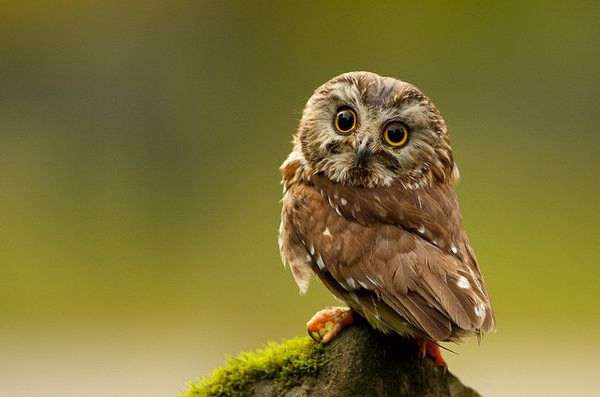
$ vipsthumbnail owl.jpg --smartcrop attention -s 128
Where owl.jpg is an off-centre composition:
Gives this result:
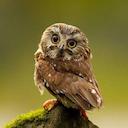
First it shrinks the image to get the vertical axis to 128 pixels, then crops
down to 128 pixels across using the attention strategy. This one searches
the image for features which might catch a human eye, see
vips_smartcrop() for details.
Linear light
Shrinking images involves combining many pixels into one. Arithmetic averaging really ought to be in terms of the number of photons, but for historical reasons the values stored in image files are usually related to the voltage that should be applied to the electron gun in a CRT display.
vipsthumbnail has an option to perform image shrinking in linear space, that
is, a colourspace where values are proportional to photon numbers. For example:
$ vipsthumbnail fred.jpg --linear
The downside is that in linear mode none of the very fast shrink-on-load
tricks that vipsthumbnail normally uses are possible, since the shrinking is
done at encode time, not decode time, and is done in terms of CRT voltage, not
photons. This can make linear light thumbnailing of large images slow.
For example, for a 10,000 x 10,000 pixel JPEG I see:
$ time vipsthumbnail wtc.jpg
real    0m0.317s
user    0m0.292s
sys 0m0.016s
$ time vipsthumbnail wtc.jpg --linear
real    0m4.660s
user    0m4.640s
sys 0m0.016s
Path option
Use --path to control where and how the thumbnail is written.
Three substitutions are performed on the argument: %s is replaced by
the input basename with any suffix removed, %d is replaced by the input
dirname, and %c is replaced by the current working directory.
The default value is %d/tn_%s.jpg meaning JPEG output, to the same
directory as the input file, with tn_ prepended. You can add format options
too, for example %c/%s/tn_%s.jpg[Q=20] will write JPEG images to a tree
within the current directory with Q set to 20, or tn_%s.png will write
thumbnails as PNG images.
The keep option to savers is especially useful. Many image have very
large IPTC, ICC or XMP metadata items embedded in them, and removing these
can give a large saving.
For example:
$ vipsthumbnail 42-32157534.jpg
$ ls -l tn_42-32157534.jpg
-rw-r–r– 1 john john 6682 Nov 12 21:27 tn_42-32157534.jpg
keep=none almost halves the size of the thumbnail:
$ vipsthumbnail 42-32157534.jpg --path x.jpg[optimize_coding,keep=none]
$ ls -l x.jpg
-rw-r–r– 1 john john 3600 Nov 12 21:27 x.jpg
Colour management
vipsthumbnail will optionally put images through LittleCMS for you. You can
use this to move all thumbnails to the same colour space. All web browsers
assume that images without an ICC profile are in sRGB colourspace, so if
you move your thumbnails to sRGB, you can strip all the embedded profiles.
This can save several kb per thumbnail.
For example:
$ vipsthumbnail shark.jpg
$ ls -l tn_shark.jpg
-rw-r–r– 1 john john 7295 Nov  9 14:33 tn_shark.jpg
Now transform to sRGB and don’t attach a profile (you can also use
keep=none, though that will remove all metadata from the image):
$ vipsthumbnail shark.jpg --output-profile srgb --path tn_shark.jpg[profile=none]
$ ls -l tn_shark.jpg
-rw-r–r– 1 john john 4229 Nov  9 14:33 tn_shark.jpg
(You can use the filename of any RGB profile. The magic string srgb selects a
high-quality sRGB profile that’s built into libvips.)
tn_shark.jpg will look identical to a user, but it’s almost half the size.
You can also specify a fallback input profile to use if the image has no embedded one. For example, perhaps you somehow know that a JPEG is in Adobe98 space, even though it has no embedded profile.
$ vipsthumbnail kgdev.jpg --input-profile /my/profiles/a98.icm
Final suggestion
Putting all this together, I suggest this as a sensible set of options:
$ vipsthumbnail fred.jpg \
    --size 128 \
    --output-profile srgb \
    --path tn_%s.jpg[optimize_coding,keep=none]