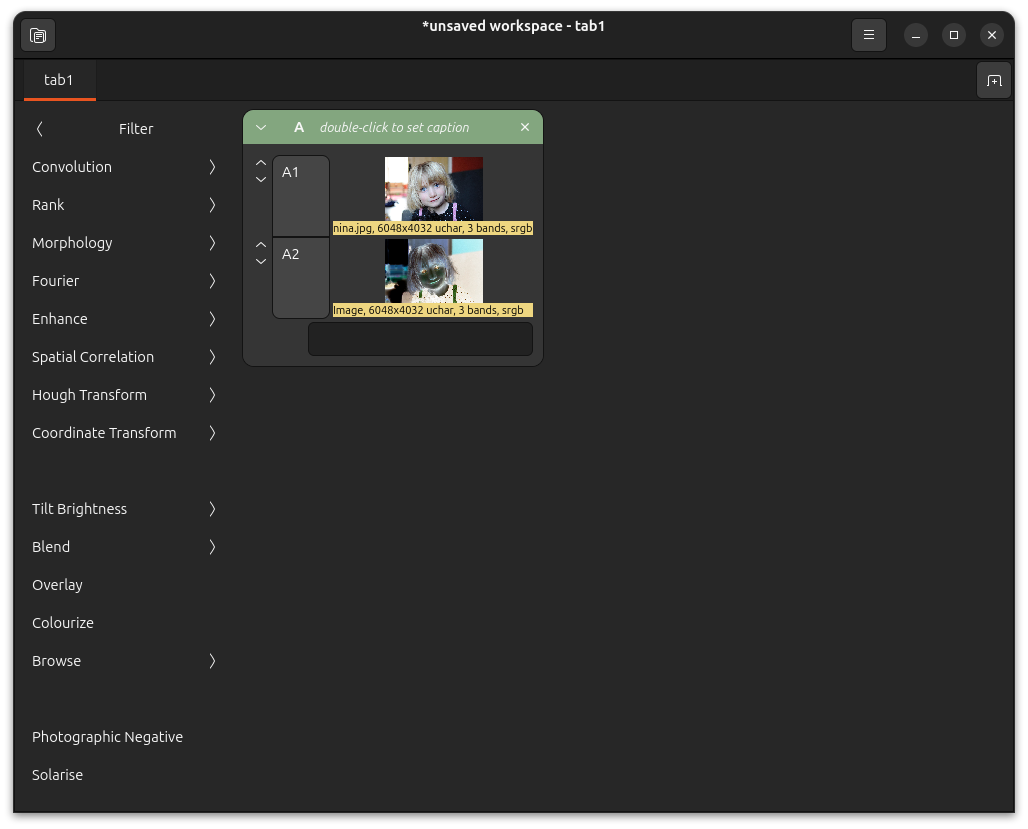
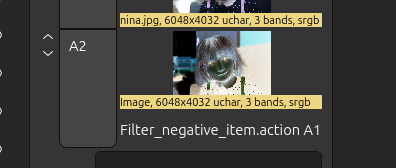
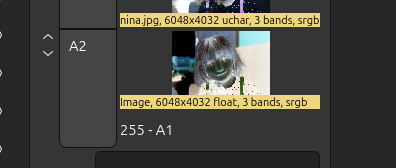
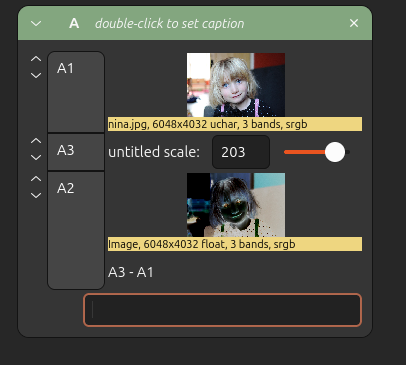
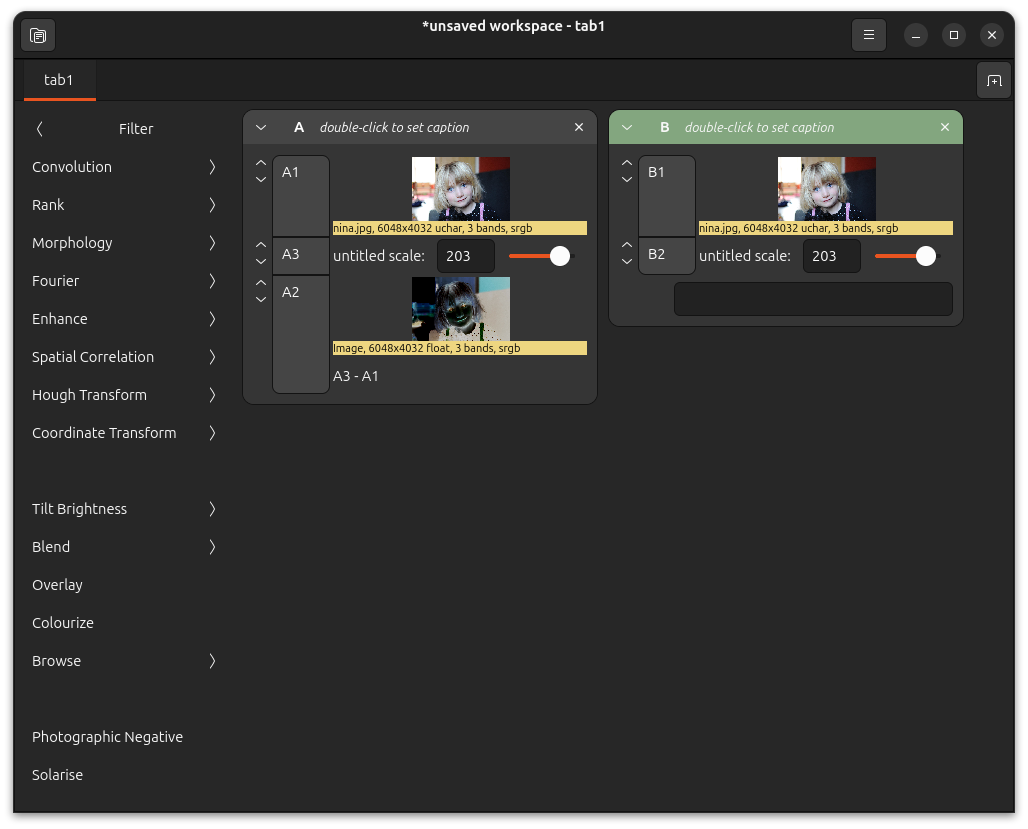
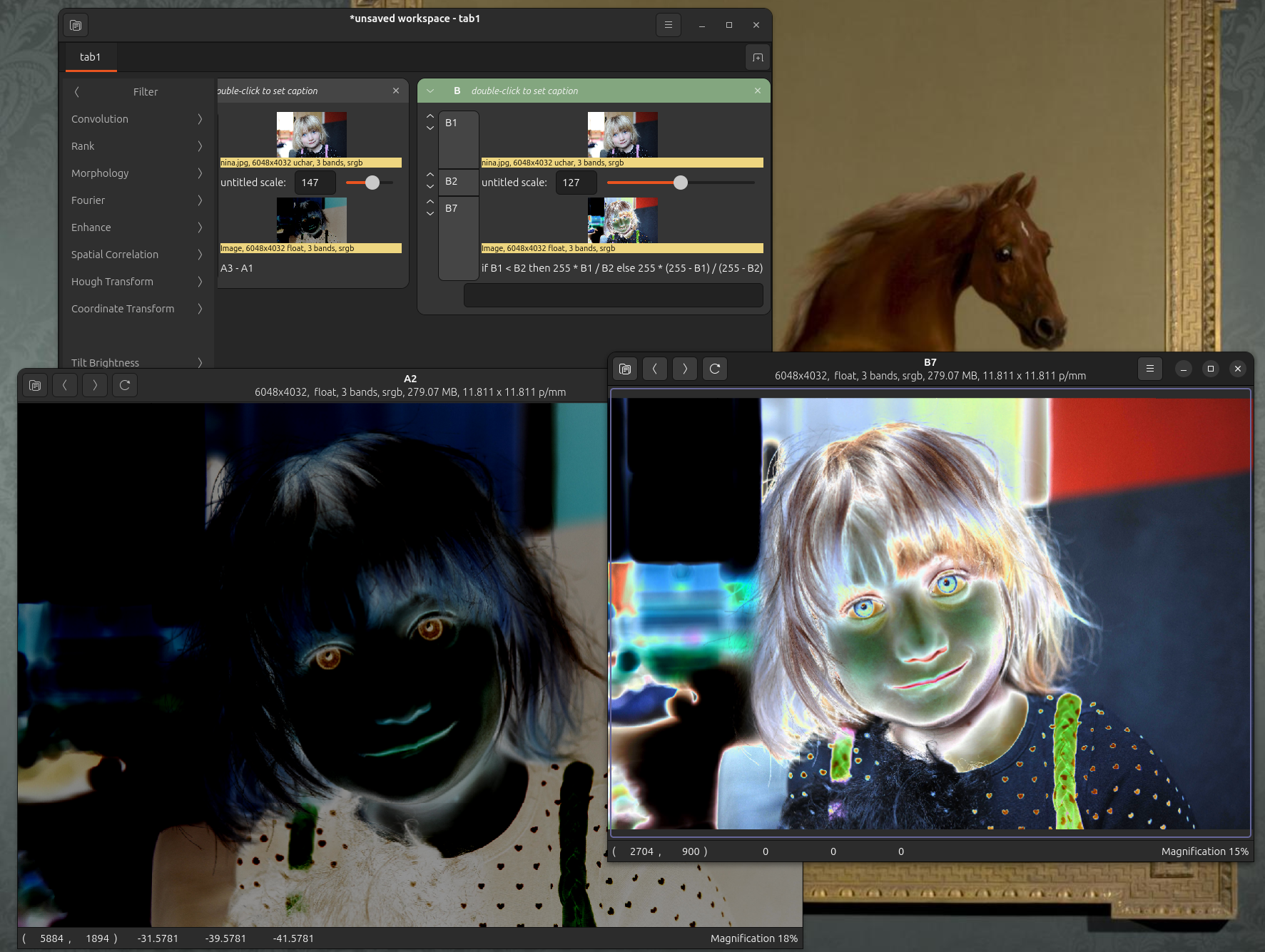
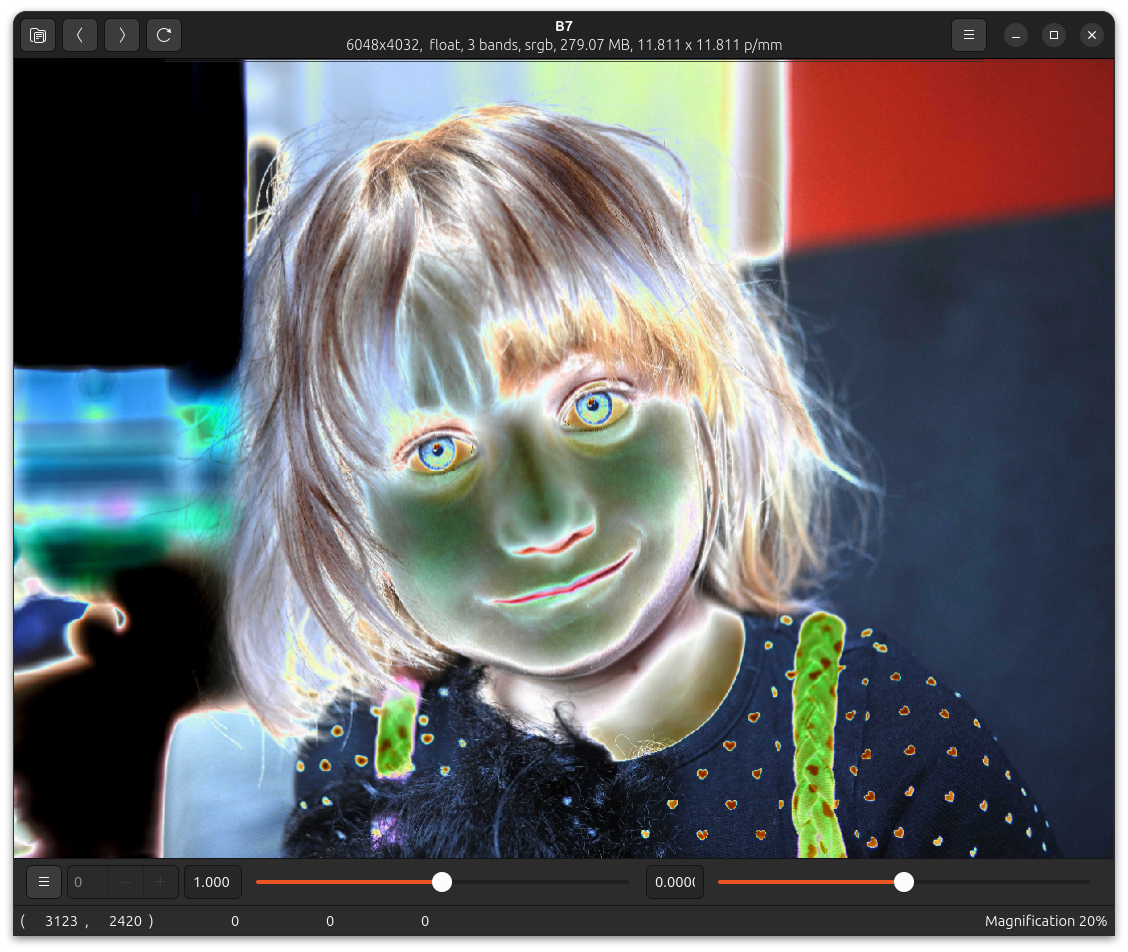
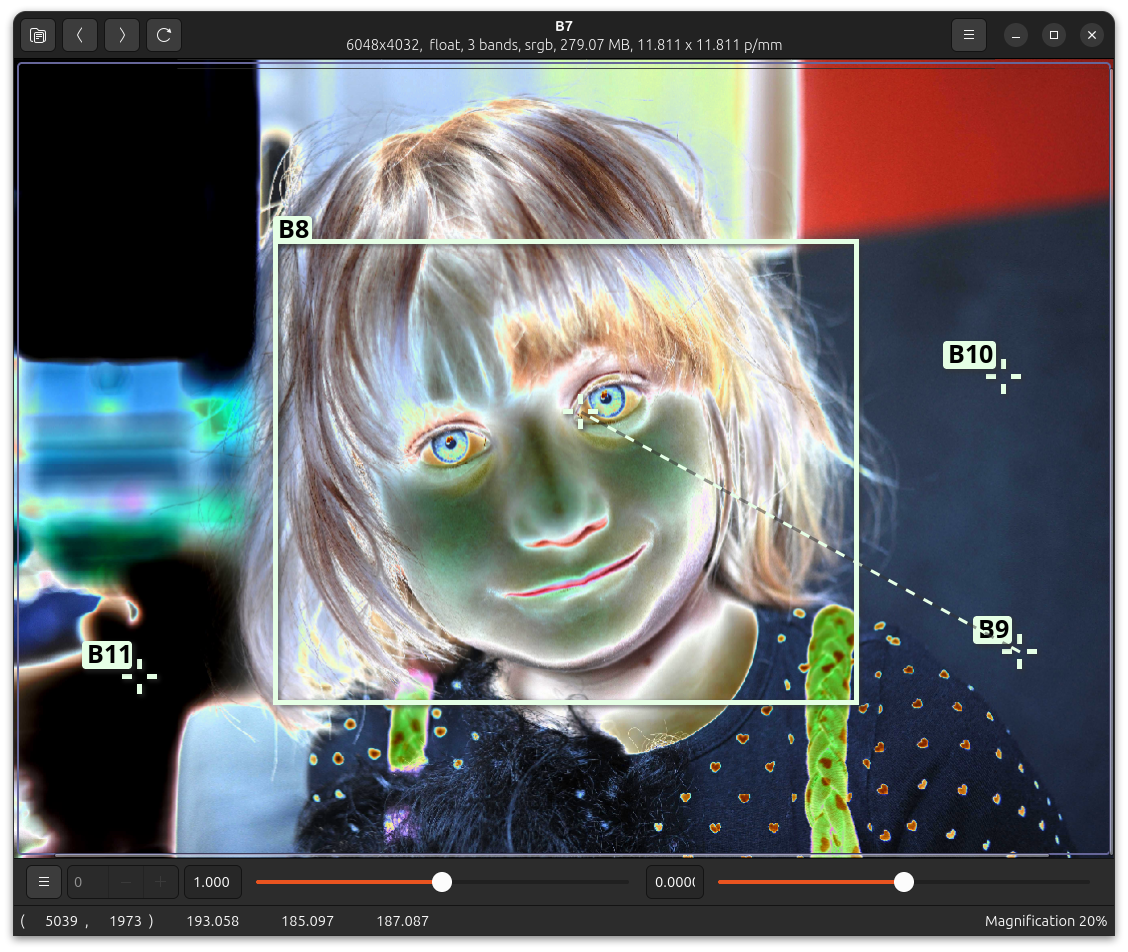
<?xml version="1.0" encoding="utf-8"?><feed xmlns="http://www.w3.org/2005/Atom" ><generator uri="https://jekyllrb.com/" version="3.10.0">Jekyll</generator><link href="https://www.libvips.org/feed.xml" rel="self" type="application/atom+xml" /><link href="https://www.libvips.org/" rel="alternate" type="text/html" /><updated>2026-02-25T12:30:00+00:00</updated><id>https://www.libvips.org/feed.xml</id><title type="html">libvips</title><subtitle>A fast image processing library with low memory needs.</subtitle><entry><title type="html">Patterns everywhere in nip4</title><link href="https://www.libvips.org/2026/02/02/nip4-pattern-matching.html" rel="alternate" type="text/html" title="Patterns everywhere in nip4" /><published>2026-02-02T00:00:00+00:00</published><updated>2026-02-02T00:00:00+00:00</updated><id>https://www.libvips.org/2026/02/02/nip4-pattern-matching</id><content type="html" xml:base="https://www.libvips.org/2026/02/02/nip4-pattern-matching.html"><![CDATA[<p>January’s work on nip4 <a href="https://github.com/jcupitt/nip4/releases">is out: 
v9.0.16</a> has more useful improvements
to the programming language, with a few more minor changes.</p>

<p>This marks the end of work on nip4’s language. Next month will focus on the
menu redesign.</p>

<p>For some background, there’s an older <a href="/2025/11/22/nip4-multiple-definitions.html">introduction to nip4’s programming
language</a> post.</p>

<h2 id="more-difficult-row-drag">More difficult row drag</h2>

<p>Left-drag on the workspace background to scroll is very handy, but left-drag
also moved rows around. I found myself often dragging rows accidentally while
navigating large workspaces, and then putting the rows back in the right place
was annoying.</p>

<p>You now have to hold down CTRL to drag rows around. Hopefully this will stop
accidental row moves!</p>

<h2 id="patterns-everywhere">Patterns everywhere!</h2>

<p>I’ve rewritten lambda expressions so they now support patterns and
deconstruction. For example:</p>

<div class="language-plaintext highlighter-rouge"><div class="highlight"><pre class="highlight"><code>main = map (\[x, y] x + y) (zip2 [1..10] [11..20]);
</code></pre></div></div>

<p>So the lambda (the backslash character) expects a two element list with
elements named as <code class="language-plaintext highlighter-rouge">x</code> and <code class="language-plaintext highlighter-rouge">y</code> and adds them together. The <code class="language-plaintext highlighter-rouge">zip2</code> makes
a list like <code class="language-plaintext highlighter-rouge">[[1, 11], [2, 12], ..]</code>, so therefore <code class="language-plaintext highlighter-rouge">main</code> will have the
value <code class="language-plaintext highlighter-rouge">[12, 14, 16, ..]</code>.</p>

<p>This means that (finally!) you can use patterns and argument deconstruction
everywhere. For example, you could write that lambda expression as:</p>

<div class="language-plaintext highlighter-rouge"><div class="highlight"><pre class="highlight"><code>main = [x + y :: [x, y] &lt;- zip2 [1..10] [11..20]];
</code></pre></div></div>

<p>I’ve also rewritten list comprehensions so they have much better scoping
behaviour.</p>

<p>The compiler is now lazy – everything is parsed during load, but code
generation only happens when functions are evaluated. This improves startup
time.</p>

<h2 id="its-now-snip">It’s now <strong>snip</strong></h2>

<p>And finally the programming language is officially renamed as <strong>snip</strong>, and
the old <code class="language-plaintext highlighter-rouge">nip4-batch</code> program is now installed as <code class="language-plaintext highlighter-rouge">snip</code>. You can use it to
write scripts with a shebang, perhaps:</p>

<div class="language-plaintext highlighter-rouge"><div class="highlight"><pre class="highlight"><code>#!/usr/bin/env snip

main = [x + y :: [x, y] &lt;- zip2 [1..10] [11..20]];
</code></pre></div></div>

<p>You can run this and see:</p>

<div class="language-plaintext highlighter-rouge"><div class="highlight"><pre class="highlight"><code>$ ./try.def 
[12, 14, 16, 18, 20, 22, 24, 26, 28, 30]
$ 
</code></pre></div></div>

<p>… though that’s not quite correct, for now you need a <code class="language-plaintext highlighter-rouge">print</code> in there too,
but this will be going away in the next version.</p>]]></content><author><name></name></author><summary type="html"><![CDATA[January’s work on nip4 is out: v9.0.16 has more useful improvements to the programming language, with a few more minor changes.]]></summary></entry><entry><title type="html">What’s new in libvips 8.18</title><link href="https://www.libvips.org/2025/12/04/What's-new-in-8.18.html" rel="alternate" type="text/html" title="What’s new in libvips 8.18" /><published>2025-12-04T00:00:00+00:00</published><updated>2025-12-04T00:00:00+00:00</updated><id>https://www.libvips.org/2025/12/04/What&apos;s-new-in-8.18</id><content type="html" xml:base="https://www.libvips.org/2025/12/04/What&apos;s-new-in-8.18.html"><![CDATA[<p>Here’s a summary of what’s new in libvips 8.18. Check the
<a href="https://github.com/libvips/libvips/blob/master/ChangeLog">ChangeLog</a>
if you need more details.</p>

<p>The headline features are support for UltraHDR, camera RAW images,
and Oklab colourspace.</p>

<h2 id="ultrahdr-support">UltraHDR support</h2>

<p>UltraHDR is a way of embedding a gainmap plus some extra metadata inside an
ordinary SDR image. An SDR display can just show the regular SDR image, but an
HDR display can extract the gainmap and use it to reconstruct a full HDR
image. Having a single image file that can display well on both SDR and HDR
devices is very valuable.</p>

<p>libvips 8.18 uses Google’s <a href="https://github.com/google/libultrahdr">libultrahdr</a>
for UltraHDR load and save. The current version of this library only
supports UltraHDR JPEG images; the next version is expected to add support
for a wider range of image formats.</p>

<p>There are two main paths for UltraHDR images in libvips: as an SDR image with a
separate gainmap, and as a full HDR image. The separate gainmap path is
relatively fast but you will sometimes need to update the gainmap during
processing. The full HDR path does not require gainmap updates, but can be
slower, and will usually lose the original image’s tone mapping.</p>

<p><a href="/API/current/uhdr.html">A new chapter in the libvips documentation</a> introduces
this feature and explains how to use it. As an example, you can use
<code class="language-plaintext highlighter-rouge">vipsthumbnail</code> to resize UltraHDR images. This command:</p>

<div class="language-plaintext highlighter-rouge"><div class="highlight"><pre class="highlight"><code>$ vipsthumbnail ultra-hdr.jpg --size 1024
</code></pre></div></div>

<p>Makes this image:</p>

<p><img src="/assets/images/tn_ultra-hdr.jpg" alt="ultrahdr thumbnail" /></p>

<p>If you view that image on an HDR display and with a web browser that supports
UltraHDR images, the rocket exhaust should look very bright. It should also
look nicely tonemapped on an SDR display.</p>

<p>We’d like to thank <a href="https://nlnet.nl/project/libvips/">nlnet for their generous support while developing this
feature</a>.</p>

<h2 id="camera-raw-support">Camera RAW support</h2>

<p>Thanks to @lxsameer, libvips 8.18 now uses <a href="https://www.libraw.org">libraw</a>
to add support for most camera RAW formats. The new
<a href="/API/current/ctor.Image.dcrawload.html"><code class="language-plaintext highlighter-rouge">vips_dcrawload()</code></a> operator will
be used to automatically import images, for example:</p>

<div class="language-plaintext highlighter-rouge"><div class="highlight"><pre class="highlight"><code>$ vipsthumbnail IMG_3260.CR2 --size 1024
</code></pre></div></div>

<p>Makes this image</p>

<p><img src="/assets/images/tn_IMG_3260.jpg" alt="dcrawload thumbnail" /></p>

<p>Most time is spent in dcraw, so performance isn’t that much better than
the previous solution with imagemagick:</p>

<div class="language-plaintext highlighter-rouge"><div class="highlight"><pre class="highlight"><code>$ /usr/bin/time -f %M:%e convert IMG_3260.CR2 -resize 500x x.jpg
442076:1.56
$ /usr/bin/time -f %M:%e vipsthumbnail IMG_3260.CR2 --size 500
359336:1.12
</code></pre></div></div>

<p>But it’s convenient to have it all in one thing.</p>

<h2 id="support-for-oklab-colourspace">Support for Oklab colourspace</h2>

<p><a href="https://en.wikipedia.org/wiki/Oklab_color_space">Oklab and Oklch</a> are new
colourspaces that are more linear than CIELAB ‘76, faster to compute, and
support HDR imaging. They have been added to CSS4 and are now implemented
by all major web browsers.</p>

<p>libvips 8.18 supports them like any other colourspace, so you can use Oklab
coordinates in image processing. For example, you could render a watermark
in an Oklab colour like this:</p>

<div class="language-python highlighter-rouge"><div class="highlight"><pre class="highlight"><code><span class="c1">#!/usr/bin/env python3
</span>
<span class="kn">import</span> <span class="nn">sys</span>
<span class="kn">import</span> <span class="nn">pyvips</span>

<span class="n">im</span> <span class="o">=</span> <span class="n">pyvips</span><span class="p">.</span><span class="n">Image</span><span class="p">.</span><span class="n">new_from_file</span><span class="p">(</span><span class="n">sys</span><span class="p">.</span><span class="n">argv</span><span class="p">[</span><span class="mi">1</span><span class="p">],</span> <span class="n">access</span><span class="o">=</span><span class="s">"sequential"</span><span class="p">)</span>

<span class="c1"># make the watermark
</span><span class="n">text</span> <span class="o">=</span> <span class="n">pyvips</span><span class="p">.</span><span class="n">Image</span> \
    <span class="p">.</span><span class="n">text</span><span class="p">(</span><span class="n">sys</span><span class="p">.</span><span class="n">argv</span><span class="p">[</span><span class="mi">3</span><span class="p">],</span> <span class="n">width</span><span class="o">=</span><span class="mi">500</span><span class="p">,</span> <span class="n">dpi</span><span class="o">=</span><span class="mi">600</span><span class="p">,</span> <span class="n">align</span><span class="o">=</span><span class="s">"centre"</span><span class="p">)</span> \
    <span class="p">.</span><span class="n">rotate</span><span class="p">(</span><span class="mi">45</span><span class="p">)</span>
<span class="n">colour</span> <span class="o">=</span> <span class="n">text</span> \
    <span class="p">.</span><span class="n">cast</span><span class="p">(</span><span class="s">"float"</span><span class="p">)</span> \
    <span class="p">.</span><span class="n">new_from_image</span><span class="p">([</span><span class="nb">float</span><span class="p">(</span><span class="n">value</span><span class="p">)</span> <span class="k">for</span> <span class="n">value</span> <span class="ow">in</span> <span class="n">sys</span><span class="p">.</span><span class="n">argv</span><span class="p">[</span><span class="mi">4</span><span class="p">:]])</span> \
    <span class="p">.</span><span class="n">copy</span><span class="p">(</span><span class="n">interpretation</span><span class="o">=</span><span class="s">"oklab"</span><span class="p">)</span> \
    <span class="p">.</span><span class="n">colourspace</span><span class="p">(</span><span class="s">"srgb"</span><span class="p">)</span>

<span class="c1"># use the text as the alpha, scaled down to make it semi-transparent
</span><span class="n">text</span> <span class="o">=</span> <span class="n">colour</span> \
        <span class="p">.</span><span class="n">bandjoin</span><span class="p">((</span><span class="n">text</span> <span class="o">*</span> <span class="mf">0.8</span><span class="p">).</span><span class="n">cast</span><span class="p">(</span><span class="s">"uchar"</span><span class="p">))</span> \
        <span class="p">.</span><span class="n">copy_memory</span><span class="p">()</span>

<span class="c1"># replicate many times to cover the image
</span><span class="n">overlay</span> <span class="o">=</span> <span class="n">text</span> \
    <span class="p">.</span><span class="n">replicate</span><span class="p">(</span><span class="mi">1</span> <span class="o">+</span> <span class="n">im</span><span class="p">.</span><span class="n">width</span> <span class="o">/</span> <span class="n">text</span><span class="p">.</span><span class="n">width</span><span class="p">,</span> <span class="mi">1</span> <span class="o">+</span> <span class="n">im</span><span class="p">.</span><span class="n">height</span> <span class="o">/</span> <span class="n">text</span><span class="p">.</span><span class="n">height</span><span class="p">)</span> \
    <span class="p">.</span><span class="n">crop</span><span class="p">(</span><span class="mi">0</span><span class="p">,</span> <span class="mi">0</span><span class="p">,</span> <span class="n">im</span><span class="p">.</span><span class="n">width</span><span class="p">,</span> <span class="n">im</span><span class="p">.</span><span class="n">height</span><span class="p">)</span>

<span class="c1"># composite on top of the image
</span><span class="n">im</span> <span class="o">=</span> <span class="n">im</span><span class="p">.</span><span class="n">composite</span><span class="p">(</span><span class="n">overlay</span><span class="p">,</span> <span class="s">"over"</span><span class="p">)</span>

<span class="n">im</span><span class="p">.</span><span class="n">write_to_file</span><span class="p">(</span><span class="n">sys</span><span class="p">.</span><span class="n">argv</span><span class="p">[</span><span class="mi">2</span><span class="p">])</span>
</code></pre></div></div>

<p>I can run it like this:</p>

<div class="language-plaintext highlighter-rouge"><div class="highlight"><pre class="highlight"><code>$ ./watermark-oklab.py ~/pics/theo.jpg x.jpg "in the beginning was the word" 0.7 0.2 -0.2
</code></pre></div></div>

<p>To generate:</p>

<p><img src="/assets/images/tn_watermark.jpg" alt="watermark" /></p>

<p>A watermarked image, with the watermark colour specified in Oklab coordinates.</p>

<h2 id="improvements-to-the-libvips-core">Improvements to the libvips core</h2>

<p>The libvips core has seen some useful improvements, mostly driven by
interactive use:</p>

<ul>
  <li>
    <p>The mmap window size hadn’t been reviewed for a long time, and I think had
been previously set after benchmarking on a 32-bit machine with limited
VMEM. For 64-bit machines this is now much larger, improving random access
speeds for many file formats.</p>
  </li>
  <li>
    <p><a href="/API/current/ctor.Image.system.html"><code class="language-plaintext highlighter-rouge">vips_system()</code></a> has a new <code class="language-plaintext highlighter-rouge">"cache"</code>
argument which adds the command to the libvips operation cache. This makes
nip4 much, much faster at issuing ImageMagick commands.</p>
  </li>
  <li>
    <p>A new system for forcing the exit of worker threads makes threadpoool
shutdown dramatically faster, greatly improving interactive performance.</p>
  </li>
  <li>
    <p>Tiled image formats now set metadata to hint their cache size to downstream
operations. This can help prevent retiling, again improving interactive
performance.</p>
  </li>
  <li>
    <p><a href="/API/current/using-vipsthumbnail.html"><code class="language-plaintext highlighter-rouge">vipsthumbnail</code></a> has a new <code class="language-plaintext highlighter-rouge">"path"</code>
argument. This gives you much more flexibility in how the output filename is
constructed. The old <code class="language-plaintext highlighter-rouge">-o</code> option is still supported, but is deprecated.</p>
  </li>
</ul>

<h2 id="better-file-format-support">Better file format support</h2>

<p>As well as the RAW support above, the other file format operations have
seen some improvements:</p>

<ul>
  <li>
    <p><a href="/API/current/ctor.Image.pdfload.html"><code class="language-plaintext highlighter-rouge">vips_pdfload()</code></a> has a new <code class="language-plaintext highlighter-rouge">"page-box"</code>
argument which lets you control which of the various media boxes you’d like
to load.</p>
  </li>
  <li>
    <p><a href="/API/current/ctor.Image.jxlload.html"><code class="language-plaintext highlighter-rouge">vips_jxlload()</code></a> has a new <code class="language-plaintext highlighter-rouge">"bitdepth"</code>
argument which sets the depth at which the image should be loaded.</p>
  </li>
  <li>
    <p><a href="/API/current/method.Image.webpsave.html"><code class="language-plaintext highlighter-rouge">vips_webpsave()</code></a> has a new
<code class="language-plaintext highlighter-rouge">"exact"</code> argument which forces the RGB in RGBA to always be saved, even if
the pixel is transparent. This can be important if you are using WebP to
store data.</p>
  </li>
  <li>
    <p><a href="/API/current/method.Image.heifsave.html"><code class="language-plaintext highlighter-rouge">vips_heifsave()</code></a> has a new
<code class="language-plaintext highlighter-rouge">"tune"</code> parameter that lets you pass detailed options to the encoder. Handy
for tuning output.</p>
  </li>
</ul>]]></content><author><name></name></author><summary type="html"><![CDATA[Here’s a summary of what’s new in libvips 8.18. Check the ChangeLog if you need more details.]]></summary></entry><entry><title type="html">Multiple definitions in nip4</title><link href="https://www.libvips.org/2025/11/22/nip4-multiple-definitions.html" rel="alternate" type="text/html" title="Multiple definitions in nip4" /><published>2025-11-22T00:00:00+00:00</published><updated>2025-11-22T00:00:00+00:00</updated><id>https://www.libvips.org/2025/11/22/nip4-multiple-definitions</id><content type="html" xml:base="https://www.libvips.org/2025/11/22/nip4-multiple-definitions.html"><![CDATA[<p>There’s a <a href="https://github.com/jcupitt/nip4/releases">new nip4 release, v9.0.15,</a>
with some useful improvements to nip4’s programming language. I thought I’d
write a summary of this new feature.</p>

<p>For some background, there’s an older <a href="/2025/03/20/introduction-to-nip4.html">introduction to
nip4</a> post.</p>

<h2 id="nip4s-programming-language">nip4’s programming language</h2>

<p>nip4 is an image processing spreadsheet and, like all spreadsheets, you can
type equations into cells.</p>

<p>The equations you can type are in fact a tiny pure functional programming
language, and this language is used to implement all of nip4’s menus and
workspace widgets.  You can use it to add things to nip4 yourself.</p>

<p>One way to experiment with it is with the <strong>Workspace definitions</strong> pane.
If you right-click on the workspace background and pick Workspace definitions
from the menu, a pane will slide in from the right:</p>

<p><img src="/assets/images/nip4-wsdefs.png" alt="nip4" /></p>

<p>This pane holds definitions local to this workspace tab. They are saved in the
workspace file, so they are a great way to add small extra things that are
useful for whatever you are working on.</p>

<p>Try entering:</p>

<div class="language-plaintext highlighter-rouge"><div class="highlight"><pre class="highlight"><code>fred = 99;
</code></pre></div></div>

<p>Pressing the ▶ (play) button will make nip4 parse and compile your
definition.  Back in the workspace, try entering <code class="language-plaintext highlighter-rouge">fred</code> at the bottom of
column <code class="language-plaintext highlighter-rouge">A</code>. You should see:</p>

<p><img src="/assets/images/nip4-wsdefs2.png" alt="nip4" /></p>

<p>If you go back to the Workspace definitions pane, edit it to <code class="language-plaintext highlighter-rouge">fred =
"banana";</code>, and press ▶ again, <code class="language-plaintext highlighter-rouge">A1</code> will update. Definitions are all live
and if you change one, everything that uses it will also update.</p>

<p>If you right-click on the workspace background and select <strong>Edit toolkits</strong>
you’ll get something more like a tiny development environment for the
language, but <strong>Workspace definitions</strong> is handier for little experiments.</p>

<h2 id="multiple-definitions">Multiple definitions</h2>

<p>The big new feature in this new version is multiple definitions. You can 
define a function many times and during execution the first one which matches 
the arguments becomes the result of the function.</p>

<p>For example, you could write this to define a factorial function:</p>

<div class="language-plaintext highlighter-rouge"><div class="highlight"><pre class="highlight"><code>factorial 1 = 1;
factorial n = n * factorial (n - 1);
</code></pre></div></div>

<p>Now <code class="language-plaintext highlighter-rouge">factorial 6</code> in a column will evaluate to 720.</p>

<p>This is not a great way to write a factorial function! But it does show the
syntax. Something like:</p>

<div class="language-plaintext highlighter-rouge"><div class="highlight"><pre class="highlight"><code>factorial n = product [1..n];
</code></pre></div></div>

<p>would be better.</p>

<h2 id="deconstruction">Deconstruction</h2>

<p>A parallel new feature is function argument pattern matching and 
deconstruction.</p>

<p>Function arguments don’t have to be simple variables — they can be
complex structure declarations. For example:</p>

<div class="language-plaintext highlighter-rouge"><div class="highlight"><pre class="highlight"><code>sum [] = 0;
sum a:x = a + sum x;
</code></pre></div></div>

<p>Square brackets mean lists and the colon (<code class="language-plaintext highlighter-rouge">:</code>) operator is infix CONS. The
first definition of <code class="language-plaintext highlighter-rouge">sum</code> will match if the argument is the empty list, and
the second for non-empty lists (lists which can be deconstructed with CONS),
with <code class="language-plaintext highlighter-rouge">a</code> being bound to the head of the list and <code class="language-plaintext highlighter-rouge">x</code> to the tail.</p>

<p>Back in the workspace, <code class="language-plaintext highlighter-rouge">sum [1..10]</code> should be 55. The <code class="language-plaintext highlighter-rouge">[1..10]</code> is a list
generator, it evaluates to <code class="language-plaintext highlighter-rouge">[1, 2, 3, 4, 5, 6, 7, 8, 9, 10]</code>.</p>

<p>This is a pretty bad way to define <code class="language-plaintext highlighter-rouge">sum</code>, a better solution is:</p>

<div class="language-plaintext highlighter-rouge"><div class="highlight"><pre class="highlight"><code>sum = foldr add 0
</code></pre></div></div>

<p>Where foldr is the standard right-associative list fold operator. You can
define it very conveniently as:</p>

<div class="language-plaintext highlighter-rouge"><div class="highlight"><pre class="highlight"><code>foldr fn st [] = st;
foldr fn st x:xs = fn x (foldr fn st xs);
</code></pre></div></div>

<h2 id="other-pattern-matching-features">Other pattern matching features</h2>

<p>Patterns can be simple constants, complex numbers, list constants, <code class="language-plaintext highlighter-rouge">:</code> (cons),
classes and argument names. You can nest these in any way you like, so:</p>

<div class="language-plaintext highlighter-rouge"><div class="highlight"><pre class="highlight"><code>conj (x, y) = (x, -y);
</code></pre></div></div>

<p>Finds the complex conjugate, or:</p>

<div class="language-plaintext highlighter-rouge"><div class="highlight"><pre class="highlight"><code>banana [a, (x, y), c] = "a three element list, with a complex number as the middle element";
</code></pre></div></div>

<p>Or:</p>

<div class="language-plaintext highlighter-rouge"><div class="highlight"><pre class="highlight"><code>test (Image x) = "it's an image!";
</code></pre></div></div>

<p>This matches any <code class="language-plaintext highlighter-rouge">x</code> which is an instance of the <code class="language-plaintext highlighter-rouge">Image</code> class.</p>

<h2 id="next">Next</h2>

<p>The next step is to update the nip4 menus, hopefully making them more
consistent and easier to use. We’ll see!</p>]]></content><author><name></name></author><summary type="html"><![CDATA[There’s a new nip4 release, v9.0.15, with some useful improvements to nip4’s programming language. I thought I’d write a summary of this new feature.]]></summary></entry><entry><title type="html">What’s new in libvips 8.17</title><link href="https://www.libvips.org/2025/06/05/What's-new-in-8.17.html" rel="alternate" type="text/html" title="What’s new in libvips 8.17" /><published>2025-06-05T00:00:00+00:00</published><updated>2025-06-05T00:00:00+00:00</updated><id>https://www.libvips.org/2025/06/05/What&apos;s-new-in-8.17</id><content type="html" xml:base="https://www.libvips.org/2025/06/05/What&apos;s-new-in-8.17.html"><![CDATA[<p>Here’s a summary of what’s new in libvips 8.17. Check the
<a href="https://github.com/libvips/libvips/blob/master/ChangeLog">ChangeLog</a>
if you need more details.</p>

<h2 id="new-documentation-system">New documentation system</h2>

<p>We were using gtk-doc for our documentation system. <a href="/API/current">We’ve switched to its
newer replacement, gi-docgen</a>, and it
should be a lot better.</p>

<p><img src="/assets/images/docs.png" alt="docs" /></p>

<p>The most interesting improvements are:</p>

<ul>
  <li>
    <p>A much better search system – try typing in the search box at the top left!</p>
  </li>
  <li>
    <p>Better and more consistent display of optional arguments, see for example
<a href="/API/current/method.Image.embed.html"><code class="language-plaintext highlighter-rouge">embed</code></a>.</p>
  </li>
  <li>
    <p>The <a href="/API/current/class.Image.html">class overview page</a>
includes a useful one-line description of each operator.</p>
  </li>
  <li>
    <p>Revised and restructured <a href="/API/current/index.html#extra">Additional
documentation</a>.</p>
  </li>
  <li>
    <p>Support for light and dark appearance.</p>
  </li>
  <li>
    <p>More consistent markup should make it easier to automatically generate
documentation for downstream projects.</p>
  </li>
</ul>

<h2 id="improvements-to-operators">Improvements to operators</h2>

<p>To help compatibility, the old vips7 matrix multiply
function is now available as a vips8 operator,
<a href="/API/current/method.Image.matrixmultiply.html"><code class="language-plaintext highlighter-rouge">matrixmultiply</code></a>.</p>

<p>We rewrote the old vips7 <code class="language-plaintext highlighter-rouge">remosaic</code> function for vips8 years
ago, but stupidly forgot to link it.  We’ve fixed this, and
<a href="/API/current/method.Image.remosaic.html"><code class="language-plaintext highlighter-rouge">remosaic</code></a>
is now proudly available. Similarly,
<a href="/API/current/method.Image.quadratic.html"><code class="language-plaintext highlighter-rouge">quadratic</code></a>
has been there for years, but never worked properly. It’s been revised and
should now (finally) be useful.</p>

<p>The so-called <a href="https://johncostella.com/magic">magic kernel</a> is <a href="/API/current/enum.Kernel.html#mks2021">now
supported</a>
for image resize.</p>

<p>ICC import and transform now has an
<a href="/API/current/enum.Intent.html#auto"><code class="language-plaintext highlighter-rouge">auto</code></a> option
for rendering intent.</p>

<h2 id="better-file-format-support">Better file format support</h2>

<p>File format support has been improved (again). Highlights this time are:</p>

<ul>
  <li>
    <p><a href="/API/current/method.Image.gifsave.html"><code class="language-plaintext highlighter-rouge">gifsave</code></a>
has a new <code class="language-plaintext highlighter-rouge">keep_duplicate_frames</code> option</p>
  </li>
  <li>
    <p><a href="/API/current/ctor.Image.svgload.html"><code class="language-plaintext highlighter-rouge">svgload</code></a>
has a new <code class="language-plaintext highlighter-rouge">stylesheet</code> option for custom CSS, and a <code class="language-plaintext highlighter-rouge">high_bitdepth</code> option
for scRGB output.</p>
  </li>
  <li>
    <p><a href="/API/current/ctor.Image.heifload.html"><code class="language-plaintext highlighter-rouge">heifload</code></a>
has a new <code class="language-plaintext highlighter-rouge">unlimited</code> flag to remove all load limits, has better alpha
channel detection, and better detection of truncated files.</p>
  </li>
  <li>
    <p><a href="/API/current/ctor.Image.jp2kload.html"><code class="language-plaintext highlighter-rouge">jp2kload</code></a>
has a new <code class="language-plaintext highlighter-rouge">oneshot</code> flag which can improve compatibility for older
jp2k files.</p>
  </li>
  <li>
    <p><a href="/API/current/method.Image.jxlsave.html"><code class="language-plaintext highlighter-rouge">jxlsave</code></a>
has much lower memory use for large images.</p>
  </li>
  <li>
    <p><a href="/API/current/ctor.Image.openslideload.html"><code class="language-plaintext highlighter-rouge">openslideload</code></a>
now shares and reuses connections to the underlying file format library,
improving speed.</p>
  </li>
  <li>
    <p><a href="/API/current/ctor.Image.ppmload.html"><code class="language-plaintext highlighter-rouge">ppmload</code></a>
has a new buffer variant for convenience.</p>
  </li>
  <li>
    <p>TIFF load and save has better error handling</p>
  </li>
  <li>
    <p>A new “convert for save” system fixes a large number of minor bugs and
inconsistencies in file format support.</p>
  </li>
</ul>

<h2 id="general-improvements">General improvements</h2>

<p>There have been some smaller libvips additions and improvements too.</p>

<ul>
  <li>
    <p>The
<a href="/API/current/method.Image.hough_line.html"><code class="language-plaintext highlighter-rouge">hough_line</code></a>
operator has better scaling to Hough space.</p>
  </li>
  <li>
    <p><a href="/API/current/method.Image.shrink.html"><code class="language-plaintext highlighter-rouge">shrink</code></a>
is noticeably faster</p>
  </li>
  <li>
    <p>The operation cache is a lot more reliable.</p>
  </li>
  <li>
    <p><a href="/API/current/method.Image.sink_screen.html"><code class="language-plaintext highlighter-rouge">sink_screen</code></a>
has better scheduling and should render thumbnails much more quickly.</p>
  </li>
  <li>
    <p>The ICC operators are better at detecting and rejecting corrupt profiles.</p>
  </li>
</ul>

<p>Plus some even more minor bugfixes and improvements.</p>]]></content><author><name></name></author><summary type="html"><![CDATA[Here’s a summary of what’s new in libvips 8.17. Check the ChangeLog if you need more details.]]></summary></entry><entry><title type="html">Introduction to nip4</title><link href="https://www.libvips.org/2025/03/20/introduction-to-nip4.html" rel="alternate" type="text/html" title="Introduction to nip4" /><published>2025-03-20T00:00:00+00:00</published><updated>2025-03-20T00:00:00+00:00</updated><id>https://www.libvips.org/2025/03/20/introduction-to-nip4</id><content type="html" xml:base="https://www.libvips.org/2025/03/20/introduction-to-nip4.html"><![CDATA[<p><a href="https://github.com/jcupitt/nip4">nip4 is now mostly done</a>
so this post tries to introduce this strange tool for people who’ve not
come across it before.</p>

<p>If you used nip2, there’s a <a href="/2025/03/12/nip4-for-nip2-users.html">nip4 for nip2
users</a> post
which runs though the main differences.</p>

<p>I’ll write a “nip4 for nerds” post next week introducing nip4’s programming
language.</p>

<h2 id="background">Background</h2>

<p>nip4 is a free spreadsheet-like GUI for the <a href="https://www.libvips.org/">libvips image processing
library</a> with binaries for Linux, Windows and Mac.
You can use it to build image processing pipelines and then execute them on
large datasets. These pipelines can get quite complex — I’ve made systems
with over 10,000 operations chained together.</p>

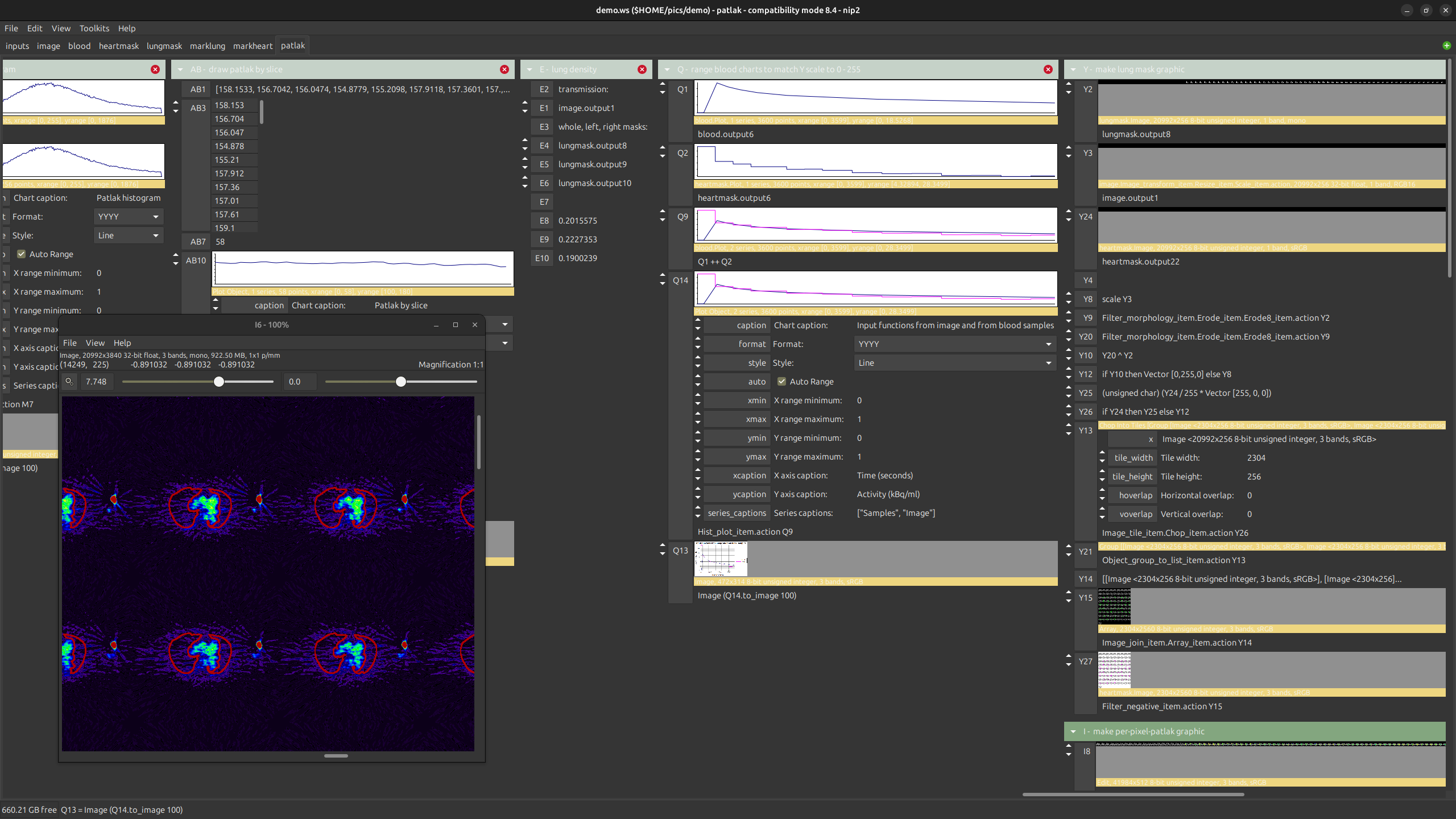
<p><img src="/assets/images/nip4-12-mar-25.png" alt="nip4" /></p>

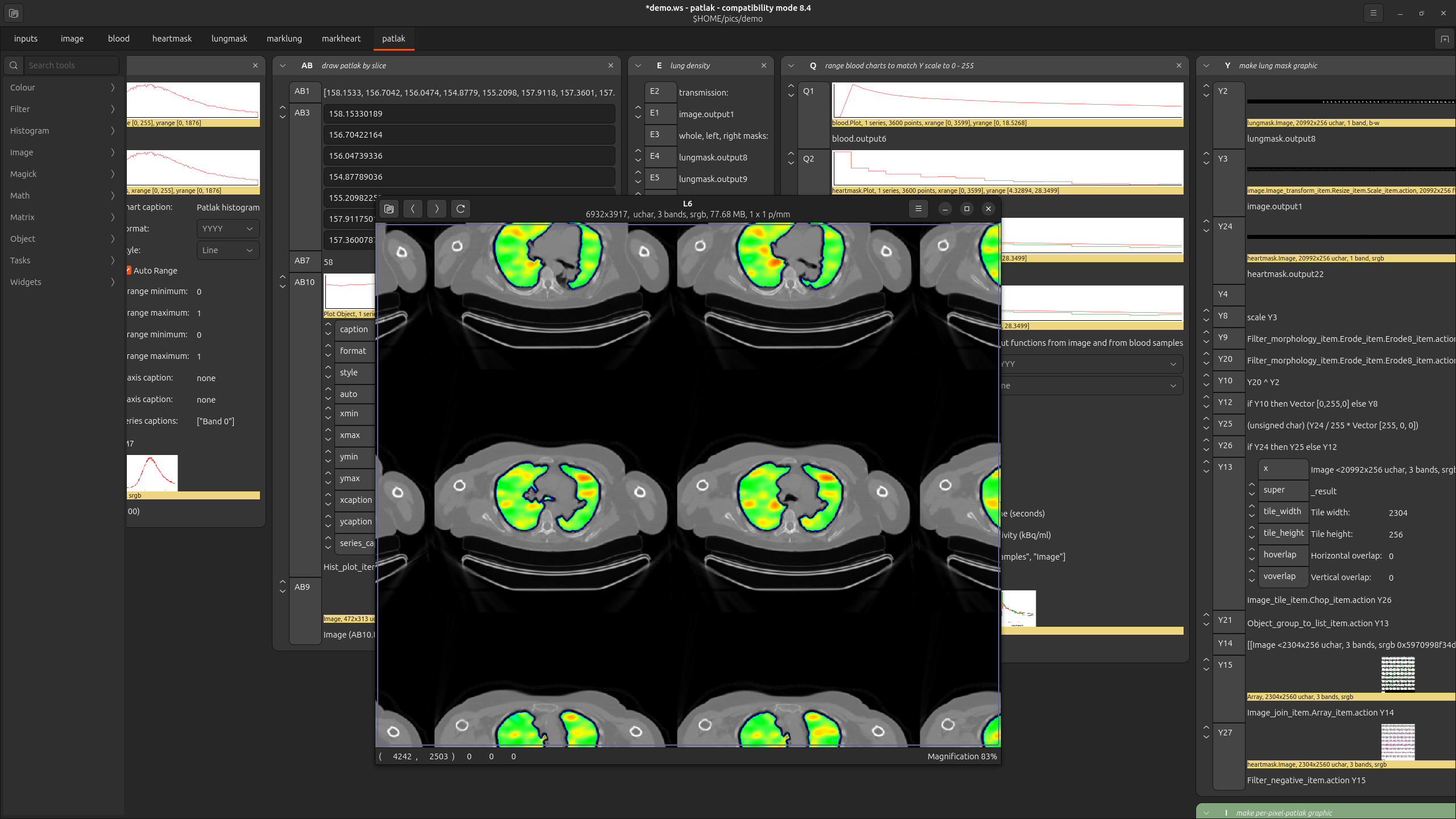
<p>This workspace analyses pulmonary PET-CT scans. It fits a two compartment
model to each lung voxel to estimate a rate constant for FDG uptake (a proxy
for inflammation).</p>

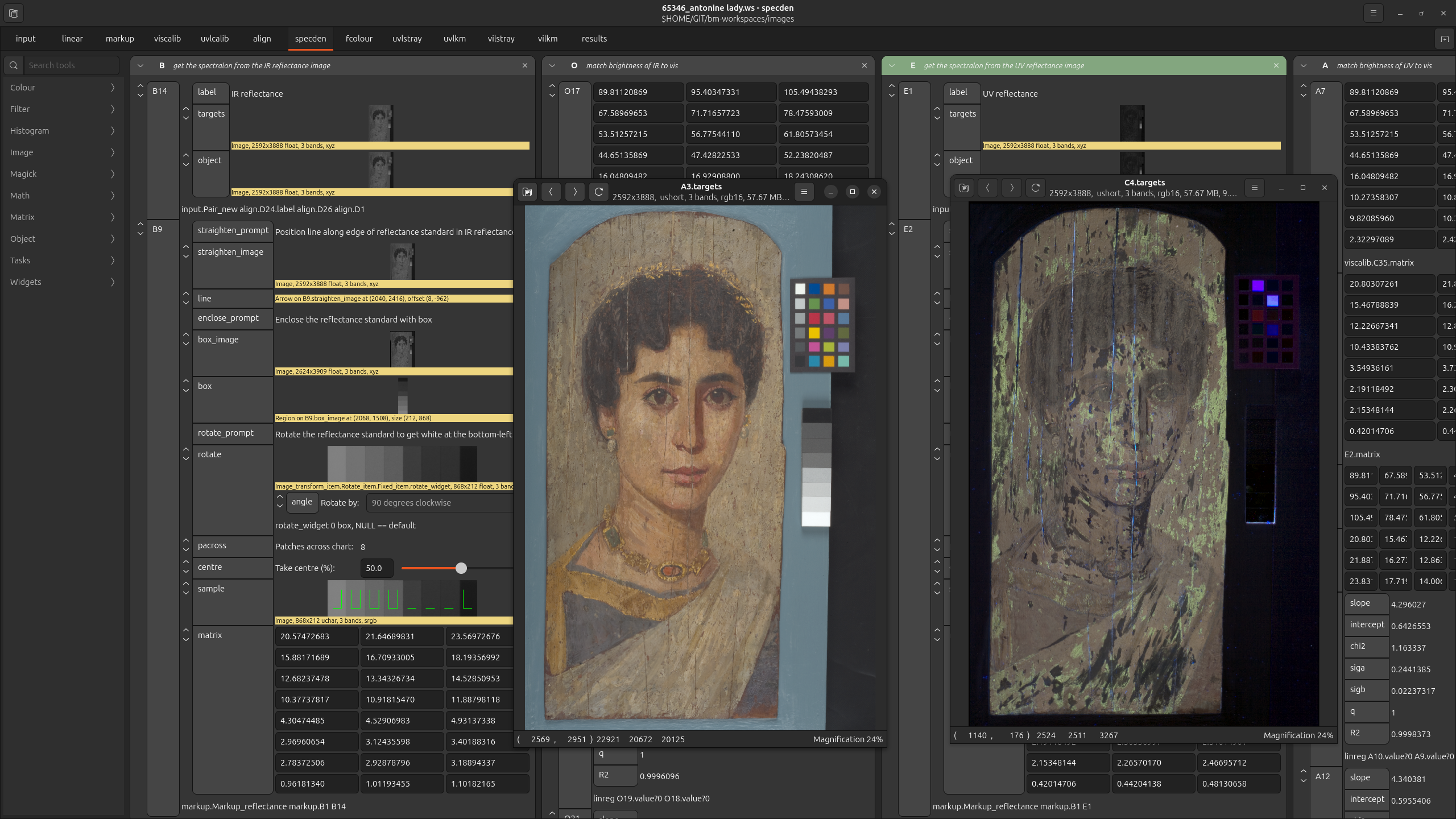
<p>Here’s <a href="https://github.com/BritishMuseum/bm-charisma">the workspace developed in the Charisma
project</a>.</p>

<p><img src="/assets/images/nip4-charisma.png" alt="nip4" /></p>

<p>This workspace standardises and automates technical imaging in museums. You
can load visible, infrared, ultraviolet, UV-induced visible luminescence and
visible-induced IR luminescence images, and it computes a set of derivatives.
This screenshot shows calibrated visible and calibrated UV-induced visible 
luminescence with stray-light removal and Kubelka–Munk modelling of scatter.</p>

<h2 id="why-is-it-useful">Why is it useful?</h2>

<p>Because the underlying image processing engine is libvips, it’s fast and
does not need a lot of memory. The Charisma workspace above, for example,
loads in about 5s on this PC, manipulates almost 100GB of images, but runs
in under 1GB of RAM:</p>

<p><img src="/assets/images/nip4-resources.png" alt="nip4" /></p>

<p>Everything is live. You can open an image view window on any of the
cells in the workspace and watch pixels change as you edit the formula.</p>

<p>The whole systems is lazy and demand-driven. You can load enormous images
(many 100s of gigabytes) and manipulate them interactively, since only the
pixels needed to update the screen actually get processed. When you do a final
save operation, it will take a while, of course.</p>

<p>nip4 comes with a separate program called <code class="language-plaintext highlighter-rouge">snip</code>. This is a batch-mode
processor that can load nip4 workspace files and execute them on a set of
inputs. You can use to apply a workspace you’ve developed in nip4 to a big
collection of images.</p>

<h2 id="the-main-window">The main window</h2>

<p>When you start nip4 it looks something like this. I’ve loaded a test image
(drag one in, use the folder button at the top left, or start nip4 from the
command-line with <code class="language-plaintext highlighter-rouge">nip4 my-great-image.jpg</code>):</p>

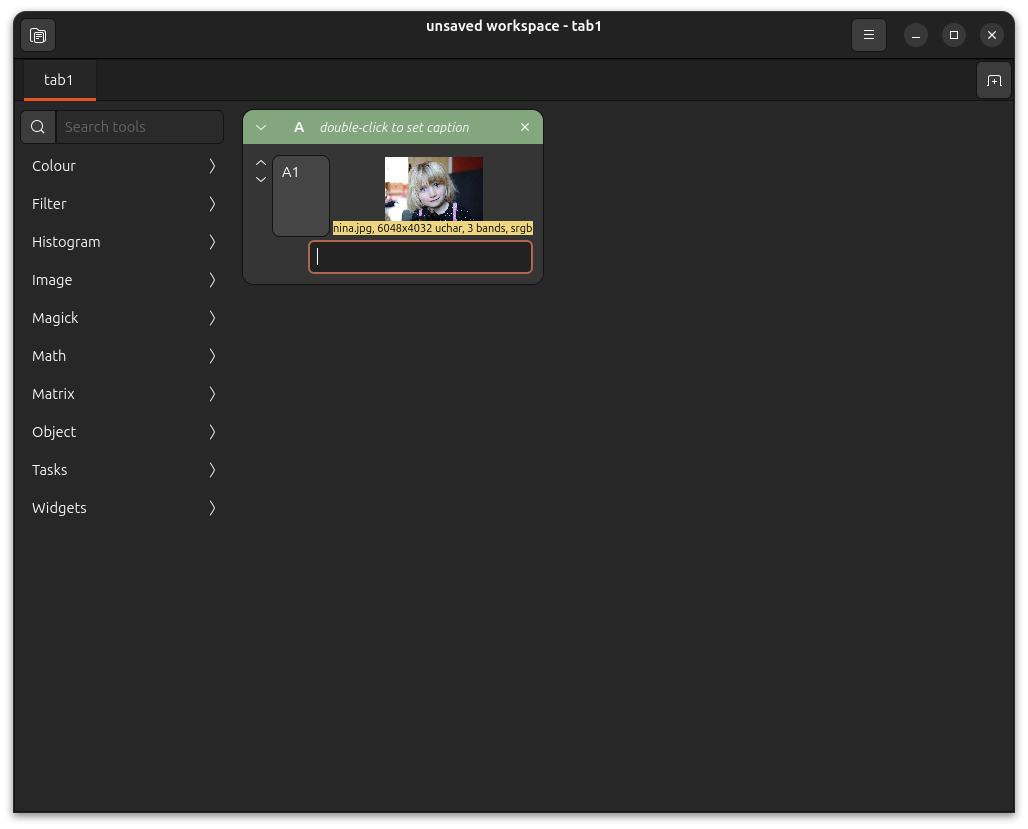
<p><img src="/assets/images/nip4-main-window.png" alt="nip4" /></p>

<p><code class="language-plaintext highlighter-rouge">A</code> is the current column, <code class="language-plaintext highlighter-rouge">A1</code> is a row for the image you loaded, this is all
in <code class="language-plaintext highlighter-rouge">tab1</code>. The thing down the left is the set of loaded toolkits.</p>

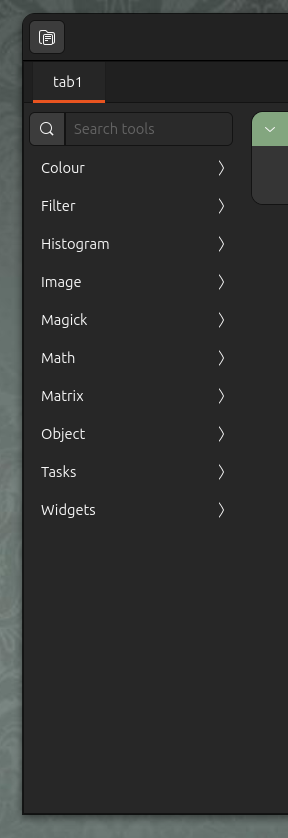
<p>The toolkit menu contains around 300 useful operations, and you can make more
yourself. You can click to move in and out of toolkits, or you can
click in the magnifying glass at the top and search for tools by keyword.</p>

<p>If you select Filter &gt; Photographic Negative you’ll see:</p>

<p><img src="/assets/images/nip4-negative.png" alt="nip4" /></p>

<p>Most tools take one argument, and they are applied to the bottom row 
in the current column. If you want to apply a tool to a row other than the
bottom one, select it first by clicking on the row label.</p>

<p>If you open up <code class="language-plaintext highlighter-rouge">A2</code> by clicking on the <code class="language-plaintext highlighter-rouge">V</code> down button next to the label,
you’ll see the cell formula:</p>

<p><img src="/assets/images/nip4-formula.png" alt="nip4" /></p>

<p>So the function <code class="language-plaintext highlighter-rouge">Filter_negative_item.action</code> has been applied to the row <code class="language-plaintext highlighter-rouge">A1</code>.
You can edit the formula — click on it, enter <code class="language-plaintext highlighter-rouge">255 - A1</code>, and you should see:</p>

<p><img src="/assets/images/nip4-formula2.png" alt="nip4" /></p>

<p>Which computes almost the same result.</p>

<p>Rows can contain many types of object. Click at the top of the toolkit
bar to get back to the start position, then click Widgets &gt; Scale to add a
scale widget called <code class="language-plaintext highlighter-rouge">A3</code> to the workspace. Now edit the formula to be
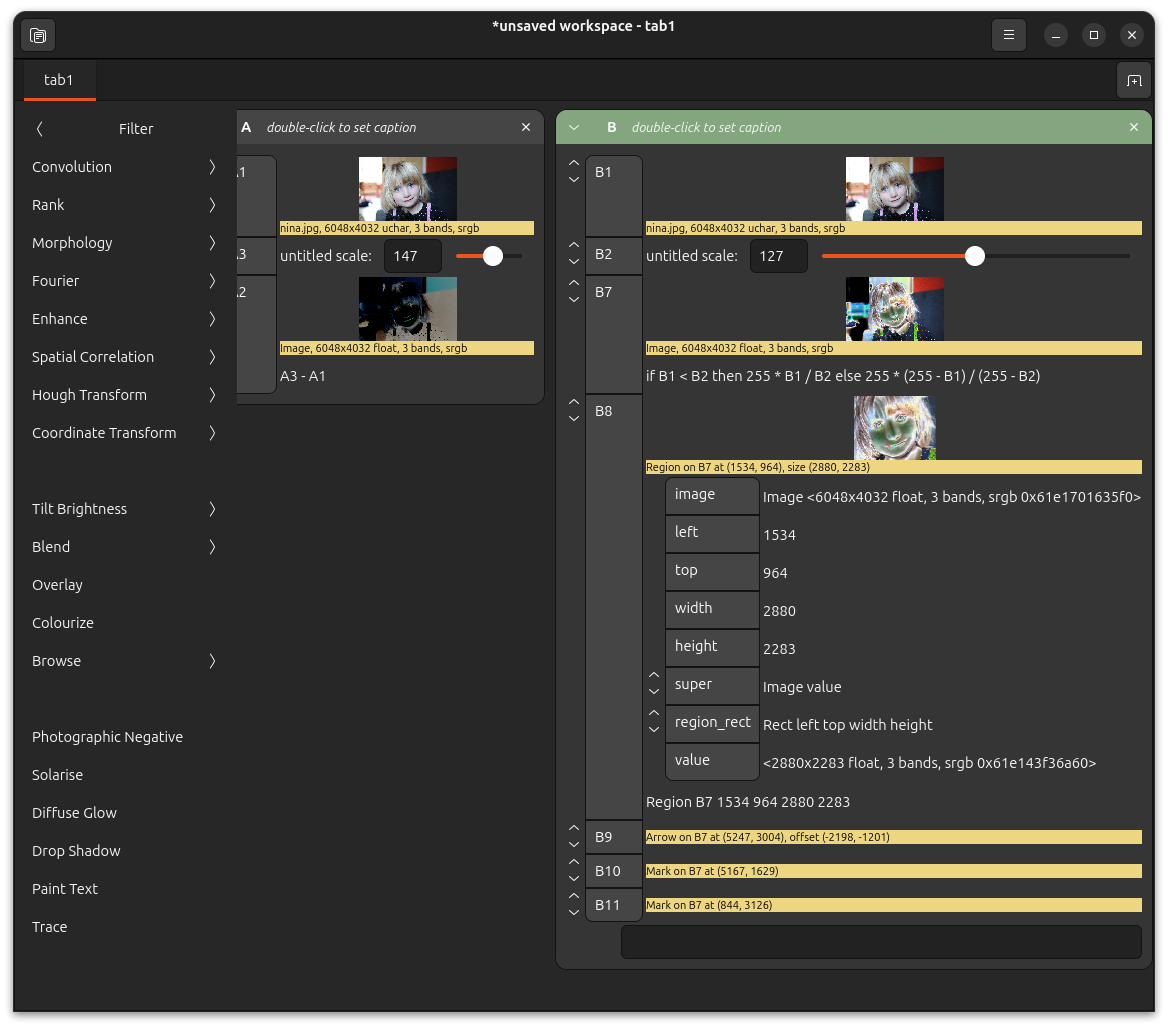
<code class="language-plaintext highlighter-rouge">A3 - A1</code> and try dragging the slider.</p>

<p>It looks a bit awkward with the result row <code class="language-plaintext highlighter-rouge">A2</code> positioned before the scale.
You can reorder columns by holding down Ctrl and dragging on the row label.</p>

<p><img src="/assets/images/nip4-scale.png" alt="nip4" /></p>

<p>nip4 does not have an undo operation, instead it has fast and easy duplicate,
merge and delete. If you make a copy of column <code class="language-plaintext highlighter-rouge">A</code> before you start changing
it, you can’t lose any of your current work.</p>

<p>Duplicate column <code class="language-plaintext highlighter-rouge">A</code> by right-clicking on the column title and selecting
Duplicate from the menu.  Right-click on <code class="language-plaintext highlighter-rouge">B3</code> and select Delete, so you have:</p>

<p><img src="/assets/images/nip4-duplicate.png" alt="nip4" /></p>

<p>Now in the text box at the bottom of column <code class="language-plaintext highlighter-rouge">B</code>, enter this formula for
<a href="https://en.wikipedia.org/wiki/Solarization_(photography)">Solarization</a>:</p>

<div class="language-plaintext highlighter-rouge"><div class="highlight"><pre class="highlight"><code>if B1 &lt; B2 then 255 * B1 / B2 else 255 * (255 - B1) / (255 - B2)
</code></pre></div></div>

<p>And try dragging scale <code class="language-plaintext highlighter-rouge">B2</code>. Hopefully you’ll see a solarized image.
A version of this operation is also in the standard toolkits, next to
Photographic Negative.</p>

<p>If you double-click on an image thumbnail, you’ll open an image view window.
These are all live, so as you drag scales, they’ll all update. You can zoom
in and watch the values of individual pixels change as you edit formula.</p>

<p><img src="/assets/images/nip4-solarise.png" alt="nip4" /></p>

<p>The main window has some other useful features. You can pan large workspaces
by dragging on the background, the burger menu at the top-right has some
useful options, there’s a context menu on the workspace tab, and another one
on the workspace background.</p>

<p>The burger menu includes Recover After Crash, which lets you get any workspace
back if something bad happens (I hope it doesn’t).</p>

<h2 id="the-image-view-window">The image view window</h2>

<p>The nip4 image view window has a lot of useful shortcuts.</p>

<ul>
  <li>Cursor keys to scroll around</li>
  <li>Cursor keys plus shift to move by a screen size</li>
  <li>Cursor keys plus Ctrl to move to image edges</li>
  <li>Number keys to pick a particular magnification</li>
  <li>Ctrl + number keys to pick a particular zoom out</li>
  <li>0 for best fit</li>
  <li>1 for 100%</li>
  <li>d, to toggle debug rendering mode</li>
  <li>i, + / o, - to zoom in and out</li>
  <li>Ctrl-&lt; / Ctrl-&gt; for prev page, next page</li>
  <li>Alt-Left / Alt-Right for prev image, next image</li>
  <li>Mouse drag to pan</li>
  <li>Mousewheel to zoom</li>
  <li>Mousewheel + Shift/Ctrl to pan</li>
  <li>Ctrl-O replace image</li>
  <li>Ctrl-S save image</li>
  <li>Alt-Enter show properties</li>
  <li>Ctrl-C / Ctrl-V to copy paste of filenames, lists of filenames and images</li>
  <li>Drag and drop filenames, lists of filenames and images</li>
  <li>F11 fullscreen</li>
</ul>

<p>If you select View &gt; Display Control Bar, some widgets appear at the bottom.
They let you flip pages, move to animation frames, set a scale and offset
for each pixel (handy for scientific images), and a burger menu gives
a set of useful visualisation options such as false colour, log scale,
and colour management.</p>

<p><img src="/assets/images/nip4-image-window.png" alt="nip4" /></p>

<p>You can also mark features on images. If you hold down Ctrl and drag down and
right, you’ll create a rectangular region, if you drag up and left you’ll mark
an arrow, if you just Ctrl-click you’ll mark a point.</p>

<p>If you drag down and left you’ll mark a horizontal guide, if you drag up and
right you’ll mark a vertical guide. Regions, arrows and points snap to guides,
so they are handy for lining up groups of annotations.</p>

<p><img src="/assets/images/nip4-regions.png" alt="nip4" /></p>

<h2 id="editing-complex-objects">Editing complex objects</h2>

<p>All compound row objects can be edited. Back in the main window, try pressing
the down arrow next to the region a few times. You should see something like
this:</p>

<p><img src="/assets/images/nip4-compound.png" alt="nip4" /></p>

<p>You can edit any of these member values. For example, try setting <code class="language-plaintext highlighter-rouge">top</code> to
be a fixed value, like 900. Now go back to the image window and try dragging
<code class="language-plaintext highlighter-rouge">B8</code> — you’ll find it can only be dragged left-right, because the top edge
is now fixed in place.</p>

<p>You can use any formula you like. Try setting <code class="language-plaintext highlighter-rouge">height</code> to be the formula
<code class="language-plaintext highlighter-rouge">width * 2 ** 0.5</code>, that is, width times root two. Now you’ll find <code class="language-plaintext highlighter-rouge">B8</code> can’t
be sized vertically, but if you resize horizontally, the height will also
change to keep the region in the “A” paper aspect ratio.</p>

<h2 id="reset">Reset</h2>

<p>In that last example, three conflicting things were competing to set the
value of <code class="language-plaintext highlighter-rouge">B8</code>.</p>

<p>First, at the bottom of <code class="language-plaintext highlighter-rouge">B8</code>, you’ll see the original
equation, created when you initially dragged out the shape:</p>

<div class="language-plaintext highlighter-rouge"><div class="highlight"><pre class="highlight"><code>Region B7 1534 964 2880 2283
</code></pre></div></div>

<p>Next, as you moved the region with the mouse, the <code class="language-plaintext highlighter-rouge">left</code>, <code class="language-plaintext highlighter-rouge">top</code>, <code class="language-plaintext highlighter-rouge">width</code> and
<code class="language-plaintext highlighter-rouge">height</code> members were updated. Finally, you edited <code class="language-plaintext highlighter-rouge">top</code> by hand to fix a
value in place.</p>

<p>nip4 decides which of these ultimately sets the value of a row with two
rules:</p>

<ol>
  <li>
    <p>Graphical edits (eg. dragging a region, or moving a scale) override
formula.</p>
  </li>
  <li>
    <p>Inner edits override outer edits.</p>
  </li>
</ol>

<p>You can reset all changes to a row by right-clicking on a row and picking
Reset from the menu. It will revert to the state of the top-most formula.</p>

<h2 id="overloading">Overloading</h2>

<p>Most operations will work on rows of any type and will produce a result of the
expected type.</p>

<p>For example, if you make a new column, select Widgets &gt; Scale twice to make
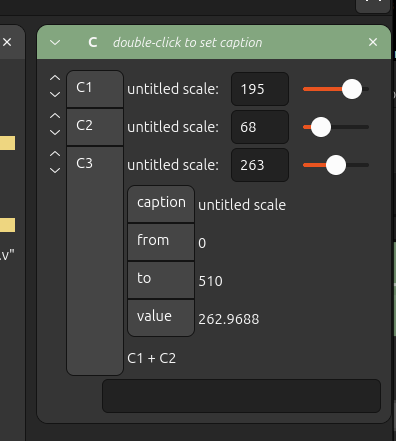
two scale widgets, then select Math &gt; Arithmetic &gt; Add (or enter <code class="language-plaintext highlighter-rouge">C1 + C2</code>
in the formula box), you’ll get a third scale. Try dragging either of the top
two scales and the third will update.</p>

<p>If you open up the new scale widget, you’ll see that <code class="language-plaintext highlighter-rouge">from</code> and <code class="language-plaintext highlighter-rouge">to</code> have
been set appropriately for the possible range:</p>

<p><img src="/assets/images/nip4-add-scale.png" alt="nip4" /></p>

<p>Just as with regions, you can also set the formula for any of these members.</p>

<h2 id="other-features">Other features</h2>

<p>Each tab can have a set of private definitions in nip4’s programming language.
Right-click on the workspace background and select Workspace Definitions.</p>

<p>All the tools and toolkits are implemented in this language too. Right-click
on the workspace background and select Edit Toolkits to change them. You can
write your own tools and toolkits.</p>

<p>You can select many rows and group them. When you perform an operation on
a group, it’ll automatically operate on every row in the group.</p>

<p>Once you’ve set up a pipeline, you can open the image view window of the first
image and use the <code class="language-plaintext highlighter-rouge">&lt;</code> and <code class="language-plaintext highlighter-rouge">&gt;</code> buttons in the titlebar to step though all the
other images in the same directory.</p>]]></content><author><name></name></author><summary type="html"><![CDATA[nip4 is now mostly done so this post tries to introduce this strange tool for people who’ve not come across it before.]]></summary></entry><entry><title type="html">nip4 for nip2 users</title><link href="https://www.libvips.org/2025/03/12/nip4-for-nip2-users.html" rel="alternate" type="text/html" title="nip4 for nip2 users" /><published>2025-03-12T00:00:00+00:00</published><updated>2025-03-12T00:00:00+00:00</updated><id>https://www.libvips.org/2025/03/12/nip4-for-nip2-users</id><content type="html" xml:base="https://www.libvips.org/2025/03/12/nip4-for-nip2-users.html"><![CDATA[<p>The <a href="https://github.com/jcupitt/nip4">test release of nip4 is now out</a>
and it seems to work OK on Linux, Windows and macOS. I thought I’d write a few
notes for users of nip2 outlining the big changes and the bits of it that are
still missing.</p>

<p>If you’ve not used nip2, there’s another post with a <a href="/2025/03/20/introduction-to-nip4.html">general introduction
to nip4</a>.</p>

<h2 id="background">Background</h2>

<p>nip2 was mostly finished around 2000, with the final big feature going
in in 2005 (I think). It still works fine, but it was becoming difficult
to maintain since the major libraries it depends on (libvips-7 for image
processing, gtk-2 for the user interface widgets, and goffice-0.8 for
plotting) have long fallen out of maintenance.</p>

<p>It was also starting to look rather crude and old-fashioned! Something
of a trip back in time, with brightly coloured elements and hard edges and
corners everywhere.  And nip2 is a “kitchen sink” program — it has lots
of features which seemed like a good idea at the time, but which I never
ended up using much.</p>

<p><img src="/assets/images/nip2.png" alt="nip2" /></p>

<p>nip4 is a rewrite of nip2 with the following aims:</p>

<ul>
  <li>
    <p>can load and process all nip2 workspaces</p>
  </li>
  <li>
    <p>add some missing language features</p>
  </li>
  <li>
    <p>use the modern gtk-4 user-interface toolkit</p>
  </li>
  <li>
    <p>a cleaner, simpler interface</p>
  </li>
  <li>
    <p>use libvips-8 for image processing</p>
  </li>
  <li>
    <p>use kplot for graphing</p>
  </li>
  <li>
    <p>simple build and distribution process for Linux, macOS and Windows</p>
  </li>
</ul>

<p>And here is nip4, running the same very complex workspace:</p>

<p><img src="/assets/images/nip4-12-mar-25.png" alt="nip4" /></p>

<h2 id="new-image-window">New image window</h2>

<p>One of the biggest changes is a completely new image view window. It
understands most pyramidal image formats, it does smooth zooming, it runs on
your GPU, it handles alpha, it supports animation and multipage images, and it
should be a lot quicker.</p>

<video src="https://github.com/user-attachments/assets/ade79310-f9c9-4696-9395-193c9b1b3ea5" controls="controls" style="max-width: 730px;">
</video>

<p>The big changes from a user-interface point of view are:</p>

<ul>
  <li>Drag with the left mouse button to pan</li>
  <li>Scrollwheel to zoom</li>
  <li>Right-click (or “burger menu” in the top right) for the main menu, then 
<strong>View / Properties</strong> or <strong>Alt-Enter</strong> to view image metadata</li>
  <li><strong>Save as …</strong> to save as some file, with a dialog to set file format
properties</li>
  <li><strong>View / Display control bar</strong> to get he scale and offset sliders, plus a
useful menu of visualisation tools</li>
  <li>The display control bar has a thing for the display mode for animated and
multipage images – you can pause animation, view the pages or frames as a
strip, and join separate-plane images into colour images</li>
  <li><strong>Ctrl-.</strong> and <strong>Ctrl-,</strong> for next page and previous page in multipage 
images, or to step though frames in an animated image</li>
  <li>You can drag and drop or copy-paste images into and out of the image view
window, so you can do Print Screen, then ^V to paste a desktop snapshot, for
example, or crop an image the ^C and ^V into another image editor</li>
  <li>Use the <strong>&lt;</strong> and <strong>&gt;</strong> buttons in the titlebar to step through the images in
the same directory as this image</li>
</ul>

<p>Most other things are the same, so number keys for zoom levels, <strong>i</strong>
and <strong>o</strong> for zoom in and out, <strong>Ctrl-drag</strong> to mark regions, cursor keys to
pan, and so on.</p>

<p>There are two new region create gestures: hold down Ctrl and drag down and
left to great a horizontal guide, and drag up and right to make a vertical
guide.  Regions, arrows and points snap to guides, so they are handy for
lining up groups of annotations.</p>

<h2 id="toolkit-bar">Toolkit bar</h2>

<p>The big change in the main window is the new toolkit bar down the left,
replacing the old Toolkits menu.</p>

<p><img src="/assets/images/nip4-toolkits.png" alt="nip4" /></p>

<p>It slides left and right as you select items or go back, and it stays open
after clicking on a tool, so you can use several related tools together, which
can be convenient.</p>

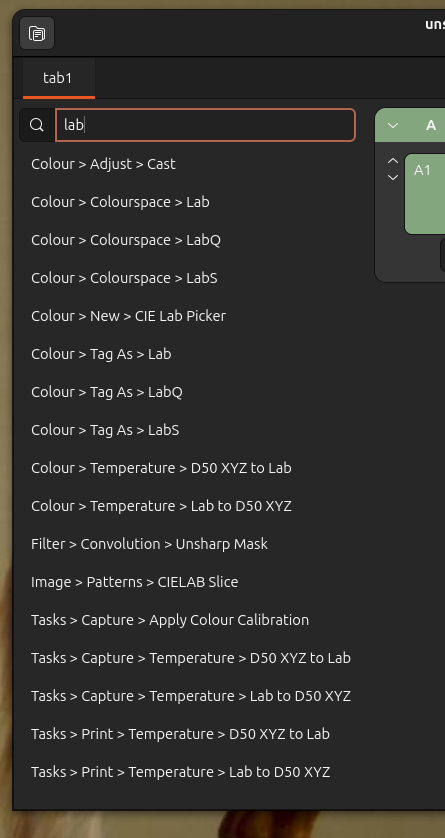
<p>It also supports keyword search. Click on the magnifying glass at the
top-left, then type something related to what you want. Entering “lab”, for
example, will show all the tools related to CIELAB colourspace, for example:</p>

<p><img src="/assets/images/nip4-toolkits-search.png" alt="nip4" /></p>

<p>Searching is fuzzy, so you don’t need to be exact.</p>

<h2 id="workspace-drag-animations">Workspace drag animations</h2>

<p>The main workspace view has fancy animations for column and row dragging,
which can help make it easier to see what’s going on.</p>

<p>You now need to hold down Ctrl before dragging a row, to make it harder to
make accidental changes. You can now (finally!) drag rows between columns.</p>

<p>You can also left-drag on the workspace background to pan, phew.</p>

<h2 id="no-object-edit-dialogs">No object edit dialogs</h2>

<p>In nip2 there was a right-click menu with an Edit option on most objects. You
couldf select this to edit basic object properties.</p>

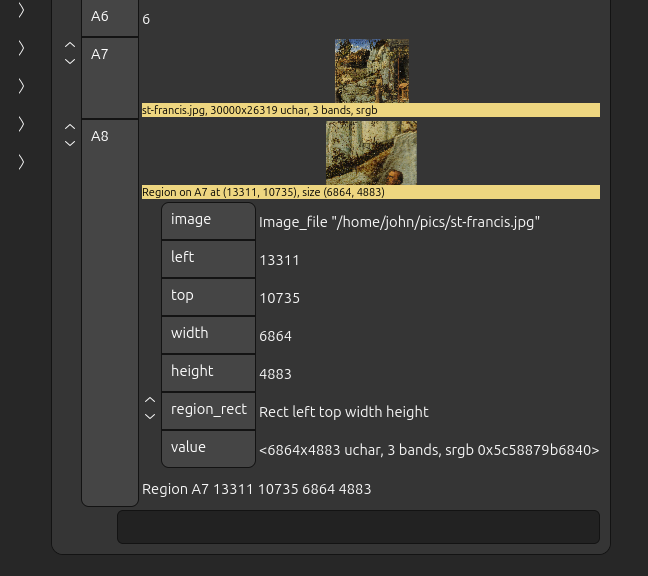
<p>This is gone in nip4, you’re supposed to 
change properties by opening the row a few times and editing the
members:</p>

<p><img src="/assets/images/nip4-region.png" alt="nip4" /></p>

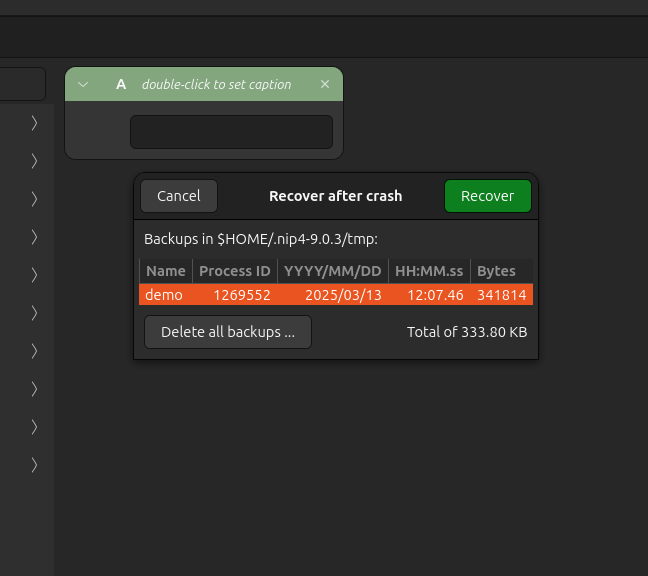
<h2 id="recover-after-crash">Recover after crash</h2>

<p>nip4 has a much better recover after crash system. Select <strong>Recover after
crash …</strong> from the main burger menu and you see a table of recent
workspace auto-backups, sorted by the process ID and time. Doubleclick one of
them to restore it.</p>

<p><img src="/assets/images/nip4-recover.png" alt="nip4" /></p>

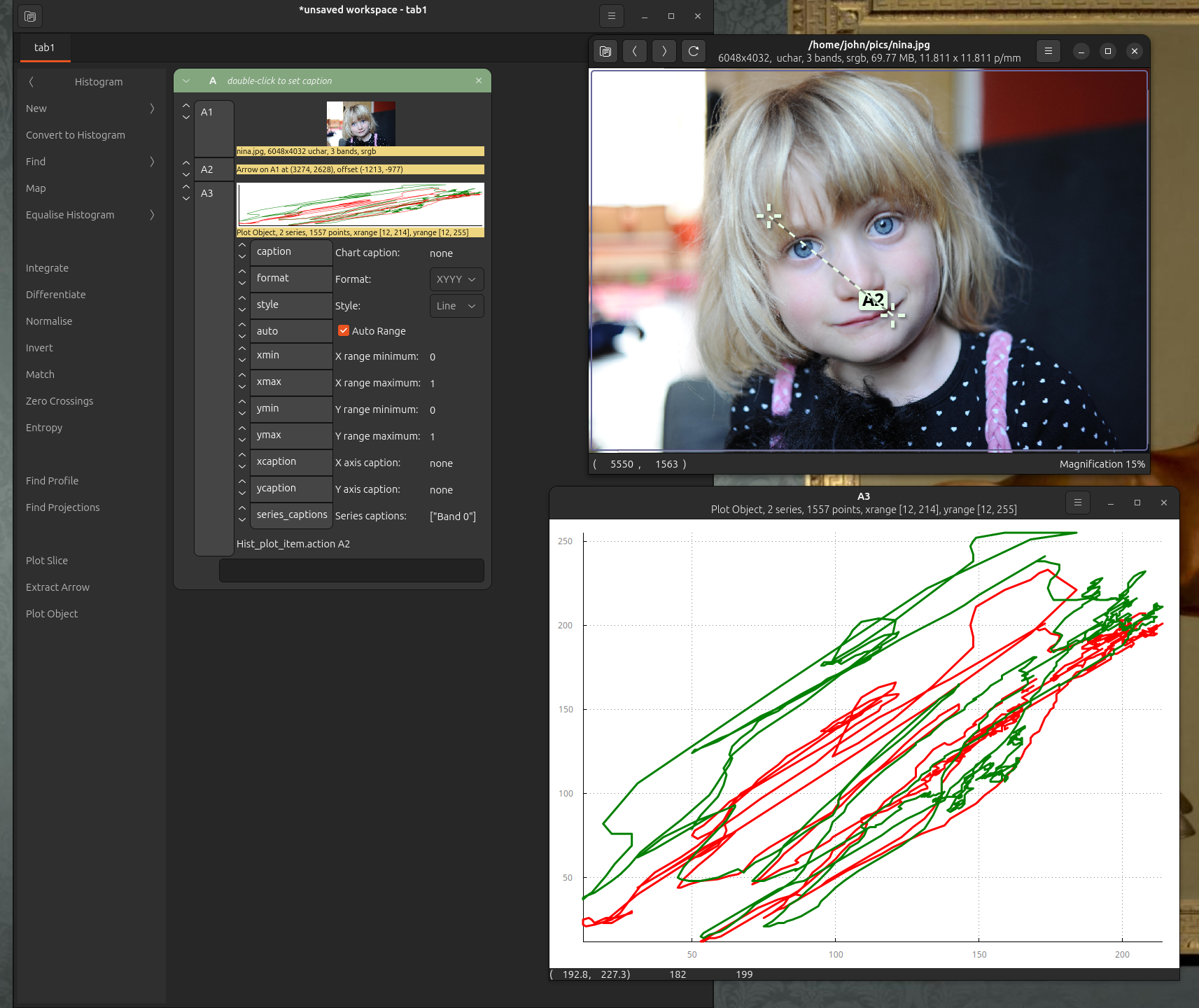
<h2 id="new-graphing-window">New graphing window</h2>

<p>The graphing window has been rewritten and <a href="https://github.com/kristapsdz/kplot">now uses
kplot</a>.</p>

<p><img src="/assets/images/nip4-plot.png" alt="nip4" /></p>

<p>It no longer supports bar plots, but everything else works, and it’s very
fast.</p>

<h2 id="multiple-select-on-rows">Multiple select on rows</h2>

<p>You can now range-select rows, then right-click on a row name and act on
them all. This is useful for deleting or duplicating sets of rows.</p>

<h2 id="definitions">Definitions</h2>

<p>If you right-click on the workspace background, the workspace menu includes
<strong>Workspace definitions</strong> and <strong>Edit toolkits …</strong>.</p>

<p>The toolkit editor is a bit basic, but does work.</p>

<h2 id="whats-missing">What’s missing</h2>

<p>The paintbox is probably the biggest missing feature, this might come back.</p>

<p>The github repository has <a href="https://github.com/jcupitt/nip4/blob/main/TODO">a large TODO
file</a> with notes
on bugs, ideas and other missing features.</p>]]></content><author><name></name></author><summary type="html"><![CDATA[The test release of nip4 is now out and it seems to work OK on Linux, Windows and macOS. I thought I’d write a few notes for users of nip2 outlining the big changes and the bits of it that are still missing.]]></summary></entry><entry><title type="html">nip4 January progress</title><link href="https://www.libvips.org/2025/01/31/nip4-January-progress.html" rel="alternate" type="text/html" title="nip4 January progress" /><published>2025-01-31T00:00:00+00:00</published><updated>2025-01-31T00:00:00+00:00</updated><id>https://www.libvips.org/2025/01/31/nip4-January-progress</id><content type="html" xml:base="https://www.libvips.org/2025/01/31/nip4-January-progress.html"><![CDATA[<p>nip4 is pretty much done! It now loads the two largest workspaces I have
correctly. I’ll do a bit more polishing and aim for an alpha release with
pre-compiled binaries for flatpak and Windows by the end of February.</p>

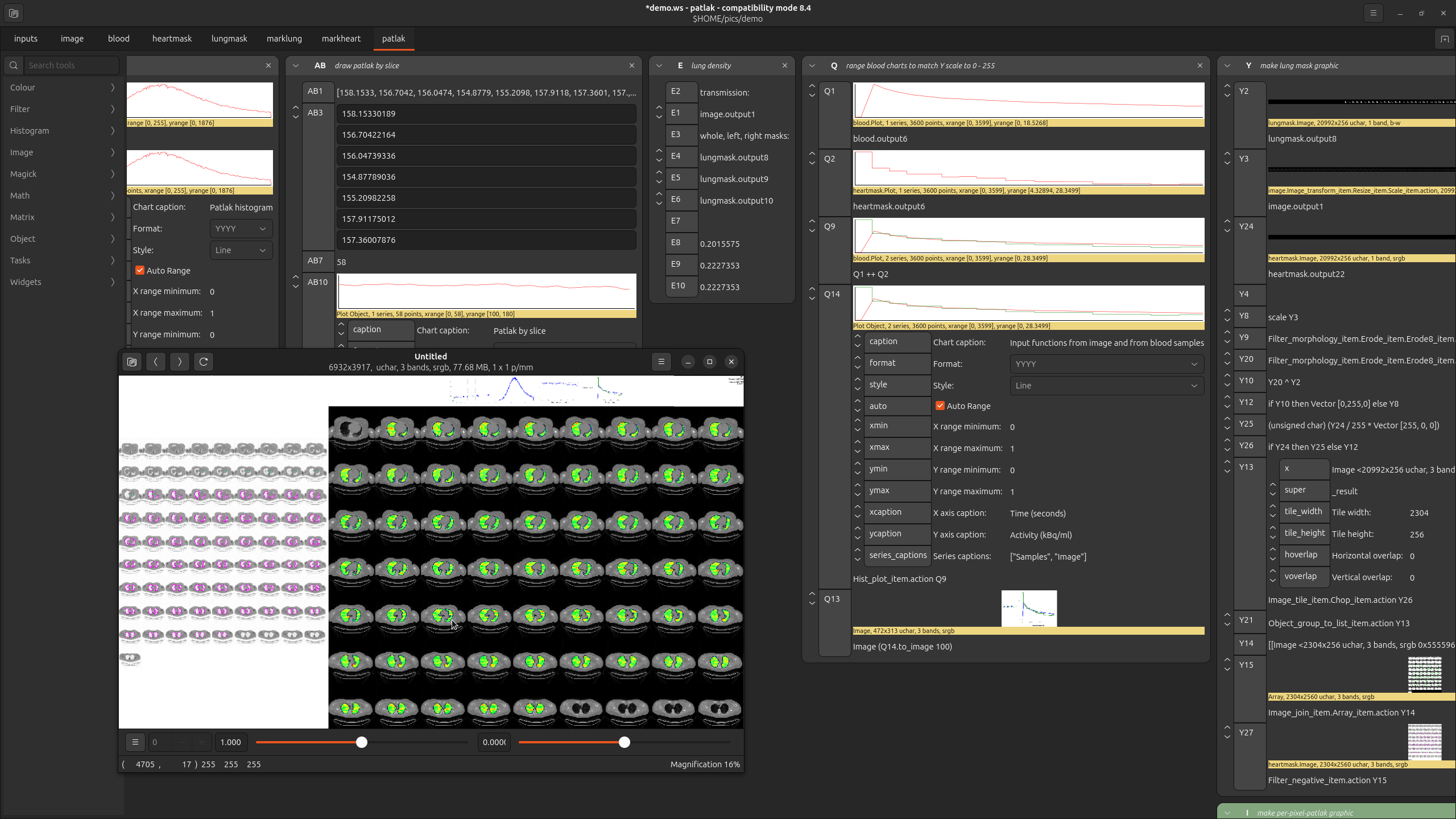
<p>Here’s the per-voxel Patlak workspace I made for analyzing pulmonary FDG-PET
scans:</p>

<p><img src="/assets/images/nip4-jan-1.png" alt="FDG-PET workspace" /></p>

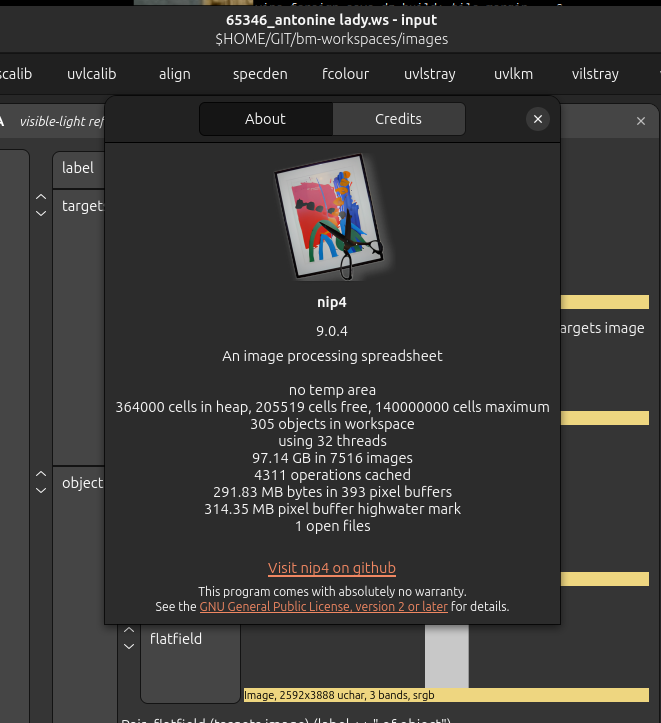
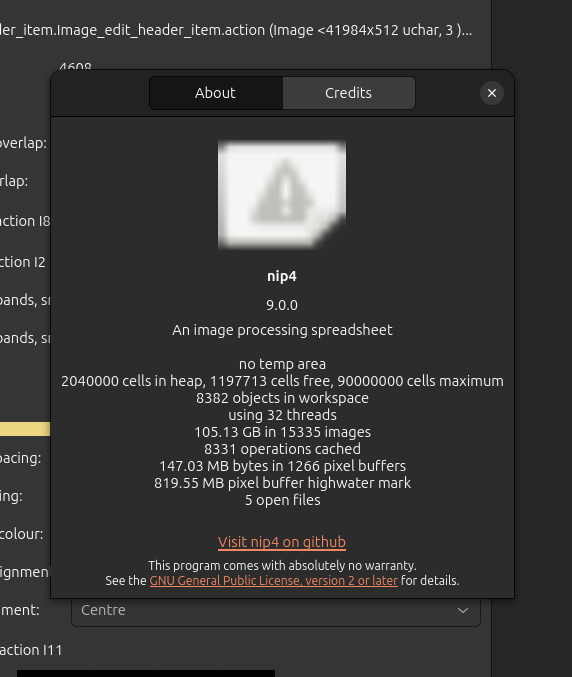
<p>The <strong>About nip4</strong> menu item shows some stats:</p>

<p><img src="/assets/images/nip4-jan-2.png" alt="Workspace stats" /></p>

<p>So this workspace has:</p>

<ul>
  <li>8,400 rows</li>
  <li>15,000 images</li>
  <li>over 100 GB of image data</li>
  <li>8,300 active operations</li>
  <li>looking at <code class="language-plaintext highlighter-rouge">top</code>, it’s running in about 2.5 GB of ram</li>
</ul>

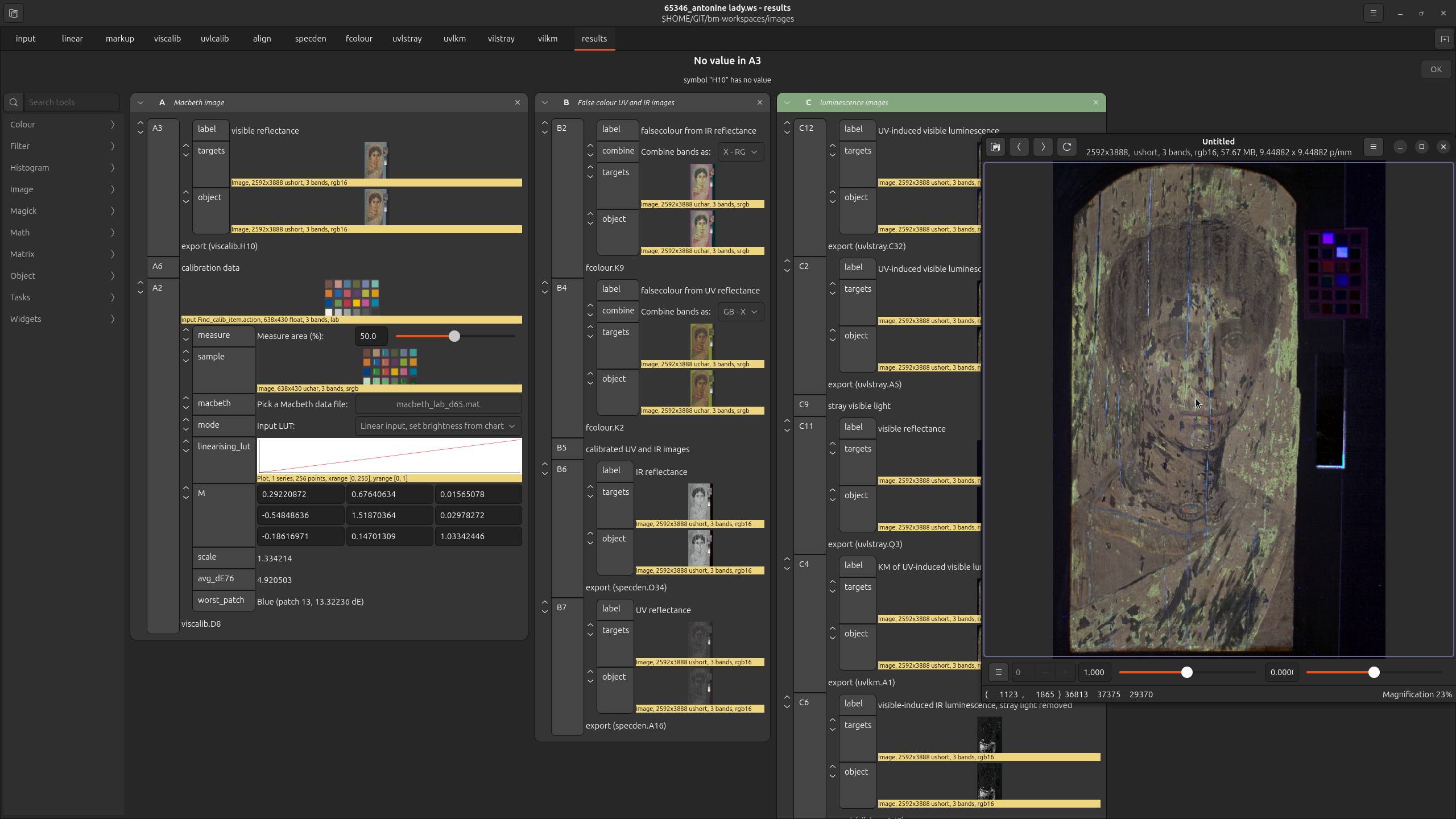
<p>Here’s the <a href="https://www.academia.edu/7276130/J_Dyer_G_Verri_and_J_Cupitt_Multispectral_Imaging_in_Reflectance_and_Photo_induced_Luminescence_modes_a_User_Manual_European_CHARISMA_Project">Charisma
workspace</a>:</p>

<p><img src="/assets/images/nip4-jan-3.png" alt="Charisma workspace" /></p>

<p>This thing is for museum imaging: you give it images taken under visible,
infrared, and UV light with various filters and it aligns them and computes
a range of useful derivatives, such as Kubelka–Munk-modelled UV-induced
visible fluorescence with stray visible light removal.</p>

<p>Looking at <strong>About nip4</strong> for this one, it’s only 300 rows, but has
14,000 images and over 120 GB of image data. It runs in about 1.2 GB of ram,
according to <code class="language-plaintext highlighter-rouge">top</code>.</p>

<h2 id="other-additions">Other additions</h2>

<p>I’ve implemented some other features:</p>

<h3 id="recover-after-crash">Recover after crash</h3>

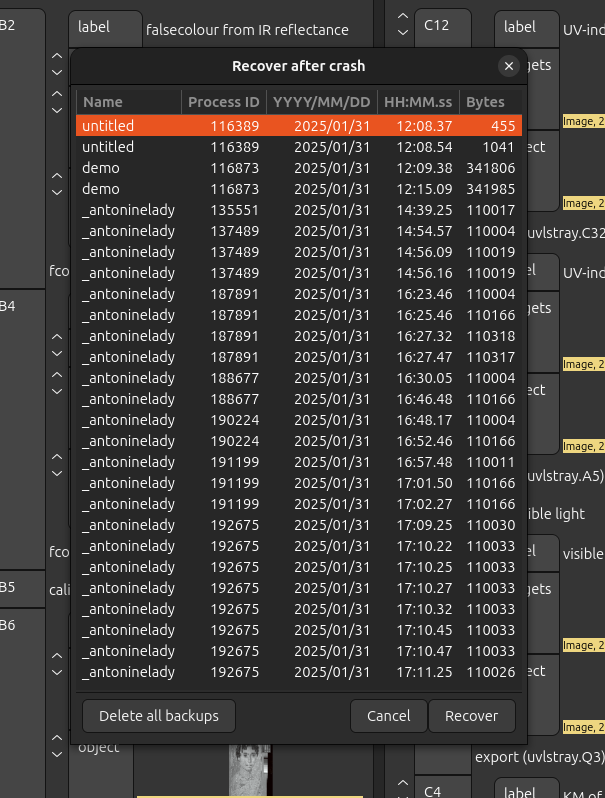
<p>nip4 saves your work after every change, and keeps the last 10 saves from
each workspace. These save files are normally deleted automatically on exit,
but if there’s a crash (sadly inevitable in alpha software) they’ll still
be there when it restarts. Click on <strong>Recover after crash</strong> and you get
this window:</p>

<p><img src="/assets/images/nip4-jan-4.png" alt="Recover after crash" /></p>

<p>You can see the saves from each nip4 workspace and select one to recover it.
The <strong>Delete all backups</strong> button wipes the temp area if it’s getting too big.</p>

<h3 id="drag-drop-and-copy-paste">Drag-drop and copy-paste</h3>

<p>You can now drag-drop and copy-paste images and workspaces from your desktop
and file manager. This is very handy for things like screen snapshots. You can
even set nip4 as the image handler for your desktop (!!!).</p>

<h3 id="workspace-definitions">Workspace definitions</h3>

<p>Each tab in each workspace can have private definitions. Right click on the
workspace background and select <strong>Workspace definitions</strong> and a panel opens on
the right with all the local definitions. You can edit them and press the
<strong>Play</strong> button to process your changes and update everything.</p>

<p><img src="/assets/images/nip4-jan-5.png" alt="Workspace definitions" /></p>

<h3 id="edit-toolkits">Edit toolkits</h3>

<p>Right-click on the workspace background, pick <strong>Edit toolkits</strong> and you get
the programming window:</p>

<p><img src="/assets/images/nip4-jan-6.png" alt="Programming window" /></p>

<p>You can edit and compile any of the built-in toolkits, though it’s a bit
barebones for now.</p>

<h3 id="stop-offscreen-image-renders">Stop offscreen image renders</h3>

<p>nip4 now tracks which thumbnails are visible and starts and stops rendering as
you move around a workspace. This saves a lot of memory and CPU!</p>]]></content><author><name></name></author><summary type="html"><![CDATA[nip4 is pretty much done! It now loads the two largest workspaces I have correctly. I’ll do a bit more polishing and aim for an alpha release with pre-compiled binaries for flatpak and Windows by the end of February.]]></summary></entry><entry><title type="html">nip4 November progress</title><link href="https://www.libvips.org/2024/11/26/nip4-November-progress.html" rel="alternate" type="text/html" title="nip4 November progress" /><published>2024-11-26T00:00:00+00:00</published><updated>2024-11-26T00:00:00+00:00</updated><id>https://www.libvips.org/2024/11/26/nip4-November-progress</id><content type="html" xml:base="https://www.libvips.org/2024/11/26/nip4-November-progress.html"><![CDATA[<p>I’ve done another month on nip4 – plotting is in now, and I’ve done a
first version of the new toolkit browser.</p>

<iframe width="560" height="315" src="https://www.youtube.com/embed/Qo38aMJ5JZ4?si=AfAmFBqSc9H6rRAT" title="YouTube video player" frameborder="0" allow="accelerometer; autoplay; clipboard-write; encrypted-media; gyroscope; picture-in-picture; web-share" referrerpolicy="strict-origin-when-cross-origin" allowfullscreen=""></iframe>

<p>We were using goffice to render plots, but sadly goffice is still gtk3,
with no progress towards a port. I did a bit of hacking and got it working
with gtk4, but I don’t think that’s a very maintainable way forward. Instead,
I’ve switched to kplot:</p>

<p><a href="https://github.com/kristapsdz/kplot">https://github.com/kristapsdz/kplot</a></p>

<p>This is a very simple library, but it can do everything nip4 needs, more
or less. I made a fork and added better axis labeling and picking.</p>

<p>I’ve also mostly finished the new toolkit browser. I found the nip2 Toolkit
menu difficult to use, so it’s now a scrolling bar down the left of the
window. It also supports searching, so you can find things by name as well
as by category.</p>

<p>There are some obvious missing features, and it’s still a bit crashy,
but it’s now just about possible to use nip4 for work. I’ll do a bit more
polishing, then try to make a first alpha release.</p>]]></content><author><name></name></author><summary type="html"><![CDATA[I’ve done another month on nip4 – plotting is in now, and I’ve done a first version of the new toolkit browser.]]></summary></entry><entry><title type="html">nip4 progress</title><link href="https://www.libvips.org/2024/10/19/nip4-Progress.html" rel="alternate" type="text/html" title="nip4 progress" /><published>2024-10-19T00:00:00+00:00</published><updated>2024-10-19T00:00:00+00:00</updated><id>https://www.libvips.org/2024/10/19/nip4-Progress</id><content type="html" xml:base="https://www.libvips.org/2024/10/19/nip4-Progress.html"><![CDATA[<p>libvips.org OpenCollective has generously given me a year of funding <a href="https://github.com/jcupitt/nip4">to
complete nip4</a>. This is an update of <a href="https://github.com/libvips/nip2">the
libvips GUI, nip2</a>, to the gtk4 toolkit,
and to the vips8 API.</p>

<p>nip2 was written between about 1997 and 2003 and depends on a lot of
frameworks from the period. These are becoming extremely elderly now,
and nip2 is getting difficult to maintain. It’s also looking increasingly
old-fashioned.</p>

<p><img src="https://opencollective-production.s3.us-west-1.amazonaws.com/update/c944d166-2a2a-4e96-8afe-2a08389e84ae/screenshot.png" alt="Screenshot" /></p>

<p>nip4 is hoping to fix this. It has the following goals:</p>

<ol>
  <li>
    <p>Update from the gtk2 GUI toolkit to gtk4, the current version. This
is a lot of work – the drawing model is completely different, and there
are many, many changes in best practice. As a test, I <a href="https://github.com/jcupitt/vipsdisp">updated <code class="language-plaintext highlighter-rouge">vipsdisp</code>
to gtk4</a>. The image display widget in
this viewer is the thing that will display images in nip4.</p>
  </li>
  <li>
    <p>Switch to the vips8 API. We rewrote libvips to make vips8 between about
2010 and 2015, but nip2 was obviously stuck on the old vips7 API. nip4 has
removed all the old vips7 code and redesigned for vips8. nip2 was the last
large-scale user of vips7, as far as I know, so completing nip4 will let
us build libvips with deprecated code removed by default.</p>
  </li>
  <li>
    <p>Complete backwards compatibility. nip4 aims to be able to run the whole
of the nip2 test suite unmodified. </p>
  </li>
  <li>
    <p>Prettier, simpler, faster, modernised.</p>
  </li>
</ol>

<p>nip4 is now loading the first 5 test nip2 workspaces correctly. The big change
from the UI point of view is full animation for interactions. Everything
slides around as you work:</p>

<iframe width="560" height="315" src="https://www.youtube.com/embed/Z4TpOLh2Lno?si=5F-SEp3wS37SYBDv" title="YouTube video player" frameborder="0" allow="accelerometer; autoplay; clipboard-write; encrypted-media; gyroscope; picture-in-picture; web-share" referrerpolicy="strict-origin-when-cross-origin" allowfullscreen=""></iframe>

<p>Next steps:</p>

<ol>
  <li>
    <p>Get all the old nip2 test workspaces loading. This will involve
implementing a few more workspace widgets. Plotting is probably the most work.</p>
  </li>
  <li>
    <p>Finish drag/drop and copy/paste. It’s only half-there right now.</p>
  </li>
  <li>
    <p>Add the toolkit menu and browser. This will probably be a bar down the left.</p>
  </li>
  <li>
    <p>Perhaps implement a cut down and polished version of the programming
and debugging interface from nip2.</p>
  </li>
  <li>
    <p>UI for per-workspace definitions needs to go in.</p>
  </li>
  <li>
    <p>The image processing menus are all currently designed around vips7. A
new set of vips8 menus could be a useful simplification.</p>
  </li>
  <li>
    <p>Do windows and mac builds. We have win and mac builds for vipsdisp
done already.</p>
  </li>
</ol>

<p>And I think that would be enough for a release, hopefully in the first half
of 2025.</p>]]></content><author><name></name></author><summary type="html"><![CDATA[libvips.org OpenCollective has generously given me a year of funding to complete nip4. This is an update of the libvips GUI, nip2, to the gtk4 toolkit, and to the vips8 API.]]></summary></entry><entry><title type="html">What’s new in libvips 8.16</title><link href="https://www.libvips.org/2024/10/10/What's-new-in-8.16.html" rel="alternate" type="text/html" title="What’s new in libvips 8.16" /><published>2024-10-10T00:00:00+00:00</published><updated>2024-10-10T00:00:00+00:00</updated><id>https://www.libvips.org/2024/10/10/What&apos;s-new-in-8.16</id><content type="html" xml:base="https://www.libvips.org/2024/10/10/What&apos;s-new-in-8.16.html"><![CDATA[<p>Here’s a summary of what’s new in libvips 8.16. Check the
<a href="https://github.com/libvips/libvips/blob/master/ChangeLog">ChangeLog</a>
if you need more details.</p>

<h2 id="signed-distance-fields">Signed Distance Fields</h2>

<p>libvips has a new
<a href="/API/current/ctor.Image.sdf.html"><code class="language-plaintext highlighter-rouge">vips_sdf()</code></a>
operator. This can efficiently generate a range of basic shapes as Signed
Distance Fields – these are images where each pixel contains a signed value
giving the distance to the closest edge. For example:</p>

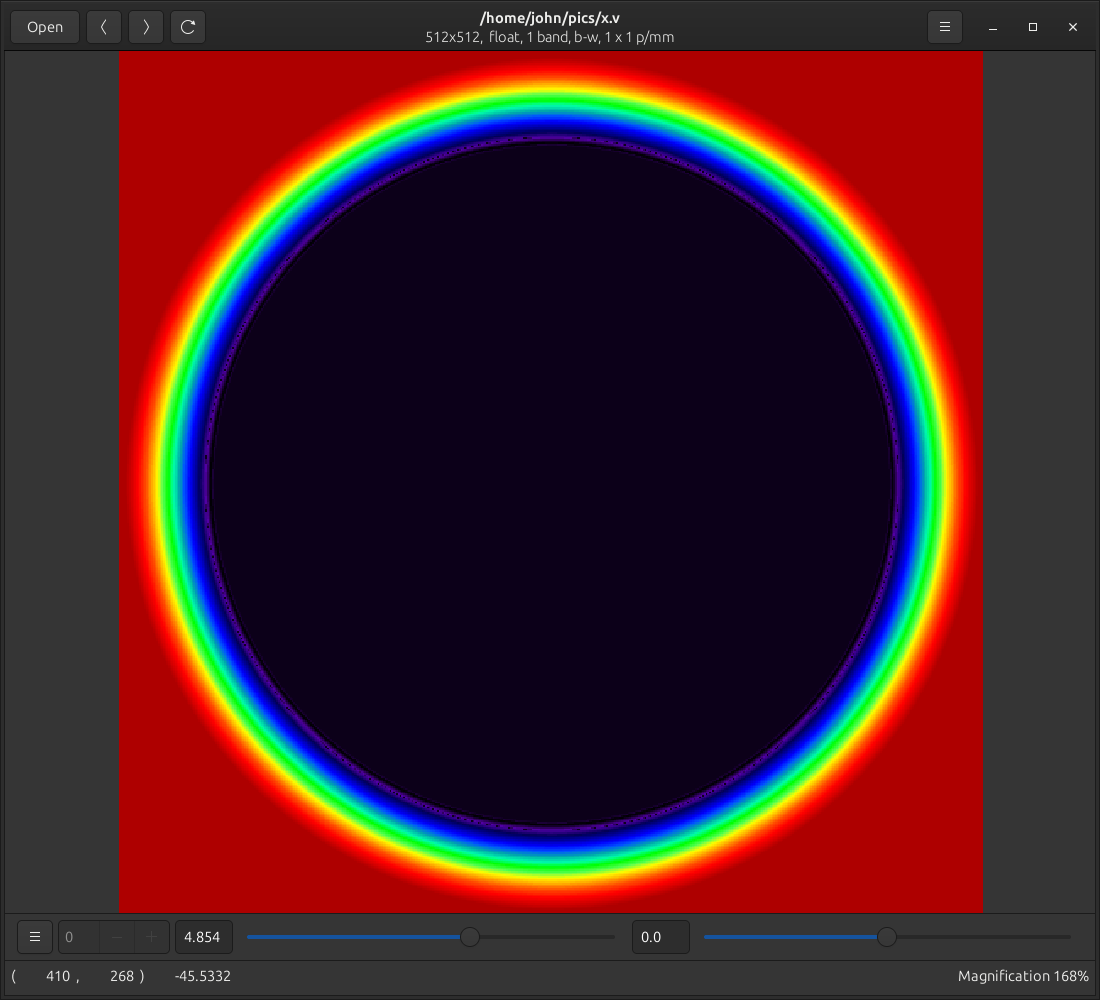
<div class="language-plaintext highlighter-rouge"><div class="highlight"><pre class="highlight"><code>$ vips sdf x.v 512 512 circle --r=200 --a="256 256"
</code></pre></div></div>

<p>Makes a 512 x 512 pixel float image of a circle with radius 200, centered
on 256 x 256. As you move out and away from the edge, values become
increasingly positive, as you move within the circle, values become negative.</p>

<p><img src="/assets/images/sdf-circle.png" alt="SDF circle" /></p>

<p>The great thing about SDFs is that they are quick to make and very easy to
combine to make more complex shapes. For example, you could write:</p>

<div class="language-python highlighter-rouge"><div class="highlight"><pre class="highlight"><code><span class="c1">#!/usr/bin/env python3
</span>
<span class="kn">import</span> <span class="nn">sys</span>
<span class="kn">import</span> <span class="nn">pyvips</span>

<span class="n">box</span> <span class="o">=</span> <span class="n">pyvips</span><span class="p">.</span><span class="n">Image</span><span class="p">.</span><span class="n">sdf</span><span class="p">(</span><span class="mi">1000</span><span class="p">,</span> <span class="mi">1000</span><span class="p">,</span> <span class="s">"rounded-box"</span><span class="p">,</span>
                       <span class="n">a</span><span class="o">=</span><span class="p">[</span><span class="mi">300</span><span class="p">,</span> <span class="mi">400</span><span class="p">],</span>
                       <span class="n">b</span><span class="o">=</span><span class="p">[</span><span class="mi">700</span><span class="p">,</span> <span class="mi">600</span><span class="p">],</span>
                       <span class="n">corners</span><span class="o">=</span><span class="p">[</span><span class="mi">100</span><span class="p">,</span> <span class="mi">0</span><span class="p">,</span> <span class="mi">0</span><span class="p">,</span> <span class="mi">0</span><span class="p">])</span>

<span class="n">circle</span> <span class="o">=</span> <span class="n">pyvips</span><span class="p">.</span><span class="n">Image</span><span class="p">.</span><span class="n">sdf</span><span class="p">(</span><span class="mi">1000</span><span class="p">,</span> <span class="mi">1000</span><span class="p">,</span> <span class="s">"circle"</span><span class="p">,</span>
                          <span class="n">a</span><span class="o">=</span><span class="p">[</span><span class="mi">500</span><span class="p">,</span> <span class="mi">300</span><span class="p">],</span>
                          <span class="n">r</span><span class="o">=</span><span class="mi">100</span><span class="p">)</span>

<span class="n">line</span> <span class="o">=</span> <span class="n">pyvips</span><span class="p">.</span><span class="n">Image</span><span class="p">.</span><span class="n">sdf</span><span class="p">(</span><span class="mi">1000</span><span class="p">,</span> <span class="mi">1000</span><span class="p">,</span> <span class="s">"line"</span><span class="p">,</span>
                        <span class="n">a</span><span class="o">=</span><span class="p">[</span><span class="mi">500</span><span class="p">,</span> <span class="mi">500</span><span class="p">],</span>
                        <span class="n">b</span><span class="o">=</span><span class="p">[</span><span class="mi">600</span><span class="p">,</span> <span class="mi">900</span><span class="p">])</span>

<span class="c1"># union
</span><span class="n">sdf</span> <span class="o">=</span> <span class="n">box</span><span class="p">.</span><span class="n">minpair</span><span class="p">(</span><span class="n">circle</span><span class="p">).</span><span class="n">minpair</span><span class="p">(</span><span class="n">line</span><span class="p">)</span>

<span class="c1"># make annular
</span><span class="n">sdf</span> <span class="o">=</span> <span class="n">sdf</span><span class="p">.</span><span class="nb">abs</span><span class="p">()</span> <span class="o">-</span> <span class="mi">15</span>

<span class="c1"># render as an antialiased image
</span><span class="n">sdf</span><span class="p">.</span><span class="n">clamp</span><span class="p">().</span><span class="n">linear</span><span class="p">(</span><span class="o">-</span><span class="mi">255</span><span class="p">,</span> <span class="mi">255</span><span class="p">,</span> <span class="n">uchar</span><span class="o">=</span><span class="bp">True</span><span class="p">).</span><span class="n">write_to_file</span><span class="p">(</span><span class="n">sys</span><span class="p">.</span><span class="n">argv</span><span class="p">[</span><span class="mi">1</span><span class="p">])</span>
</code></pre></div></div>

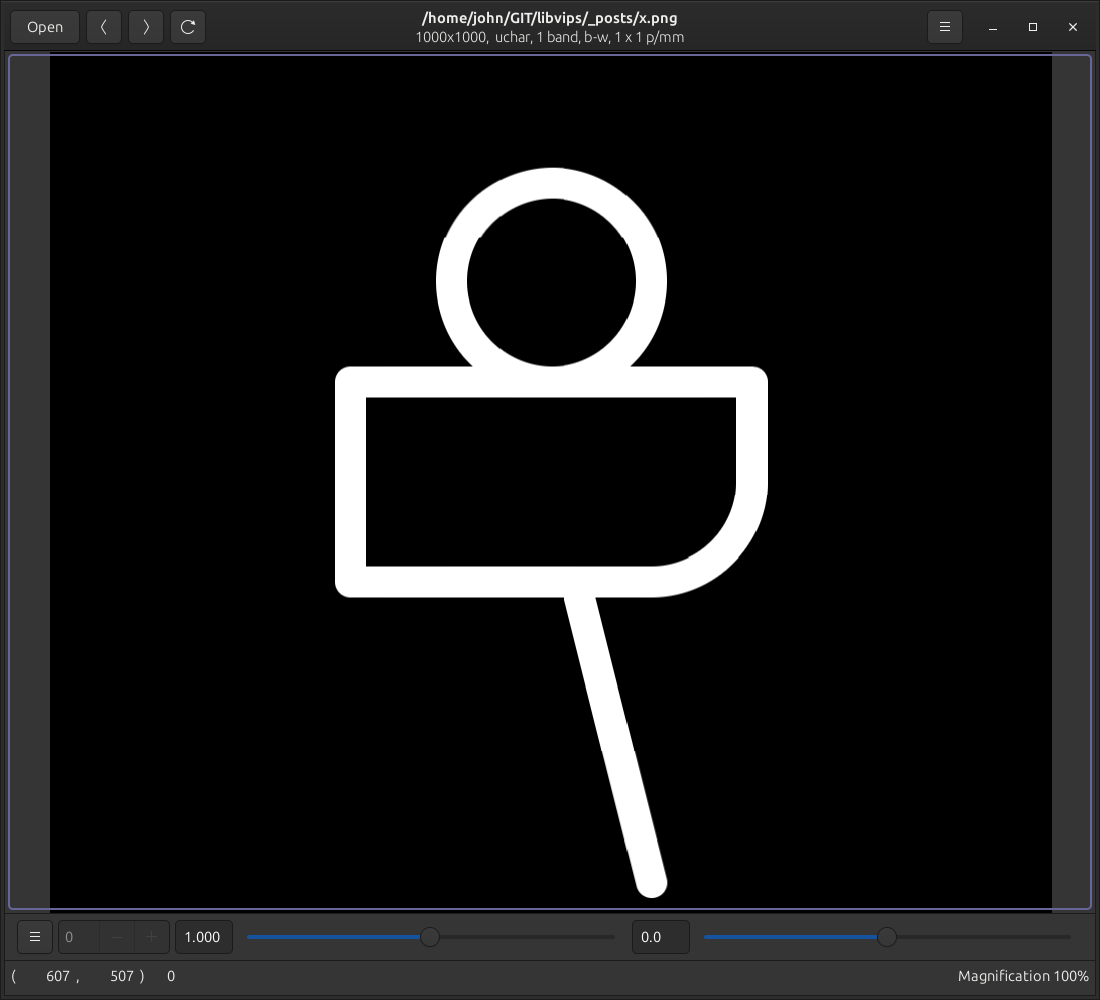
<p>To make:</p>

<p><img src="/assets/images/sdf-boat.png" alt="SDF boat" /></p>

<p>Hmmm, possibly a person rowing a boat. This uses three
other new operators: <a href="/API/current/method.Image.minpair.html"><code class="language-plaintext highlighter-rouge">vips_minpair()</code></a> and <a href="/API/current/method.Image.maxpair.html"><code class="language-plaintext highlighter-rouge">vips_maxpair()</code></a>,
which given a pair of images find the
pixel-wise max and min, and <a href="/API/current/method.Image.clamp.html"><code class="language-plaintext highlighter-rouge">vips_clamp()</code></a>, which constrains pixels
to a range.</p>

<p>SDFs fit really well with libvips on-demand-evaluation. These things
never really exist, they are just chains of delayed computation, so you can
make them any size, and compute them in parallel.</p>

<p>Up until now we’ve used SVG rendering to generate masks for large images.
SDFs are a lot faster and need much less memory – as long as you only need
simple shapes, they should be a great replacement.</p>

<h2 id="better-file-format-support">Better file format support</h2>

<p>File format support has been improved (again). Highlights this time are:</p>

<ul>
  <li>
    <p>JXL load and save now supports exif, xmp, and animation.</p>
  </li>
  <li>
    <p><code class="language-plaintext highlighter-rouge">webpsave</code> now has <code class="language-plaintext highlighter-rouge">target_size</code> parameter to set desired size in bytes and a
<code class="language-plaintext highlighter-rouge">passes</code> parameter to set number of passes to achieve desired target size,
plus a <code class="language-plaintext highlighter-rouge">smart_deblock</code> option for better edge rendering.</p>
  </li>
  <li>
    <p><code class="language-plaintext highlighter-rouge">tiffload</code> supports old-style JPEG compression.</p>
  </li>
  <li>
    <p><code class="language-plaintext highlighter-rouge">tiffsave</code> now lets you change the deflate compression level.</p>
  </li>
  <li>
    <p>All paletteised images now have a <code class="language-plaintext highlighter-rouge">palette</code> metadata item.</p>
  </li>
  <li>
    <p>PFM load and save now uses scRGB colourspace (ie. linear 0-1).</p>
  </li>
  <li>
    <p><code class="language-plaintext highlighter-rouge">rawsave</code> gets  streaming support with
<a href="/API/current/method.Image.rawsave_target.html"><code class="language-plaintext highlighter-rouge">vips_rawsave_target()</code></a> and
<a href="/API/current/method.Image.rawsave_buffer.html"><code class="language-plaintext highlighter-rouge">vips_rawsave_buffer()</code></a>.</p>
  </li>
</ul>

<h2 id="general-improvements">General improvements</h2>

<p>There have been some smaller libvips additions and improvements too.</p>

<ul>
  <li>
    <p>libvips used to limit image dimensions to 10 million pixels. This is now
configurable, see <a href="/API/current/func.max_coord_get.html"><code class="language-plaintext highlighter-rouge">vips_max_coord_get()</code></a>.</p>
  </li>
  <li>
    <p>There’s a new (trivial) <a href="/API/current/method.Image.addalpha.html"><code class="language-plaintext highlighter-rouge">vips_addalpha()</code></a> operation.</p>
  </li>
  <li>
    <p><code class="language-plaintext highlighter-rouge">vips_getpoint()</code> has a new <code class="language-plaintext highlighter-rouge">unpack_complex</code> option.</p>
  </li>
  <li>
    <p><code class="language-plaintext highlighter-rouge">vipsheader</code> supports multiple <code class="language-plaintext highlighter-rouge">-f field</code> arguments.</p>
  </li>
  <li>
    <p>libvips now includes basic <code class="language-plaintext highlighter-rouge">g_auto</code> support, making C programming slightly
more convenient.</p>
  </li>
</ul>

<p>Plus some even more minor bugfixes and improvements.</p>]]></content><author><name></name></author><summary type="html"><![CDATA[Here’s a summary of what’s new in libvips 8.16. Check the ChangeLog if you need more details.]]></summary></entry></feed>