nip4 has a new and much nicer batch mode (compared to nip2). This post tries to explain how it works with some examples.
The post about multiple definitions in nip4 from a few months ago has a very brief introduction to nip4’s programming language,
Snip
nip4 now ships with a new command-line program, called snip. This is an interpreter for the nip4 programming language and lets you write little scripts (hence the name, script nip).
It can also load all nip4 (and nip2) workspaces, patch them, and save the results. You can use this to run a workspace you’ve made over a large number of files.
Snip as a calculator
The -e (--expression) option is the easiest way to use snip. For example:
$ snip -e '2 + 2'
4
$
Or something more complicated:
$ snip -e 'reverse [1..10]'
[10, 9, 8, 7, 6, 5, 4, 3, 2, 1]
$
It’s sometimes useful in shell scripts.
Snip as a script interpreter
You can use snip as a full scripting language. For example, you could write:
main = "hello, world!\n";
Save it to hello.def (you can use any file extension, I usually use .def
for “definitions”), then execute it like this:
$ snip hello.def
hello, world!
$
If you add a shebang, then on linux and macOS you can execute your script like any program.
#!/usr/bin/env snip

main = "hello, world!\n";
Then:
$ ./hello.def
hello, world!
$
If the value of main is a string (a list of characters), it is simply
sent to stdout. If it’s some other value, snip will pretty-print it, for
example:
#!/usr/bin/env snip

main = take 10 primes;
Will print the first 10 prime numbers:
$ ./primes.def
[1, 2, 3, 5, 7, 11, 13, 17, 19, 23]
$
#include
Scripts can include other scripts, for example:
#!/usr/bin/env snip

#include "prime-number-generator.def"

main = take 10 prime_numbers;
Where the file prime-number-generator.def contains a set of definitions for
a a prime number generator. Paths are resolved relative to the including
file.
Command-line arguments
Unrecognised command-line arguments are added to the declaration of
argv, for example:
#!/usr/bin/env snip

main = argv;
Then:
$ ./args.def --banana a.def b.ws c.jpg
["./hello.def",
 "--banana",
 "a.def",
 "b.ws",
 "c.jpg"]
$
So the path used to execute the script is always the first element, with the other arguments passed to the script as strings.
Scripts can then do any argument interpretation, for example:
#!/usr/bin/env snip

main
    = error "no image argument", len argv < 2
    = "average of " ++ argv?1 ++ " is " ++
        print (mean (Image_file argv?1)) ++ "\n";
Then run with:
$ ./mean.def ~/pics/k2.jpg
average of /home/john/pics/k2.jpg is 102.8042
$
Saving output
If main evaluates to a class, snip will print the class to stdout. For example:
#!/usr/bin/env snip

main
    = error "no image argument", len argv < 2
    = map (add (Image_file argv?1)) [10, 20 .. 50];
Will make five image objects:
$ ./add.def ~/pics/k2.jpg
[Image <1450x2048 float, 3 bands, srgb>,
 Image <1450x2048 float, 3 bands, srgb>,
 Image <1450x2048 float, 3 bands, srgb>,
 Image <1450x2048 float, 3 bands, srgb>,
 Image <1450x2048 float, 3 bands, srgb>]
$
You can save these to a file or a set of files with the -o
(--output) option:
$ ./add.def ~/pics/k2.jpg -o fred.jpg
$ ls fred*
fred.jpg  fred1.jpg  fred2.jpg  fred3.jpg  fred4.jpg
If you include a number in your filename, it’ll increment that instead:
$ ./add.def ~/pics/k2.jpg -o fred-0012-image.jpg[Q=45]
$ ls fred*
fred-0012-image.jpg  fred-0014-image.jpg  fred-0016-image.jpg
fred-0013-image.jpg  fred-0015-image.jpg
$
Loading workspaces
If you run snip with the -w (--workspace) option, instead of executing the
first argument as a set of definitions, snip will load all arguments as nip4
objects. You can then use a definition of main to extract something for
printing or saving.
For example, suppose you have a workspace like this:
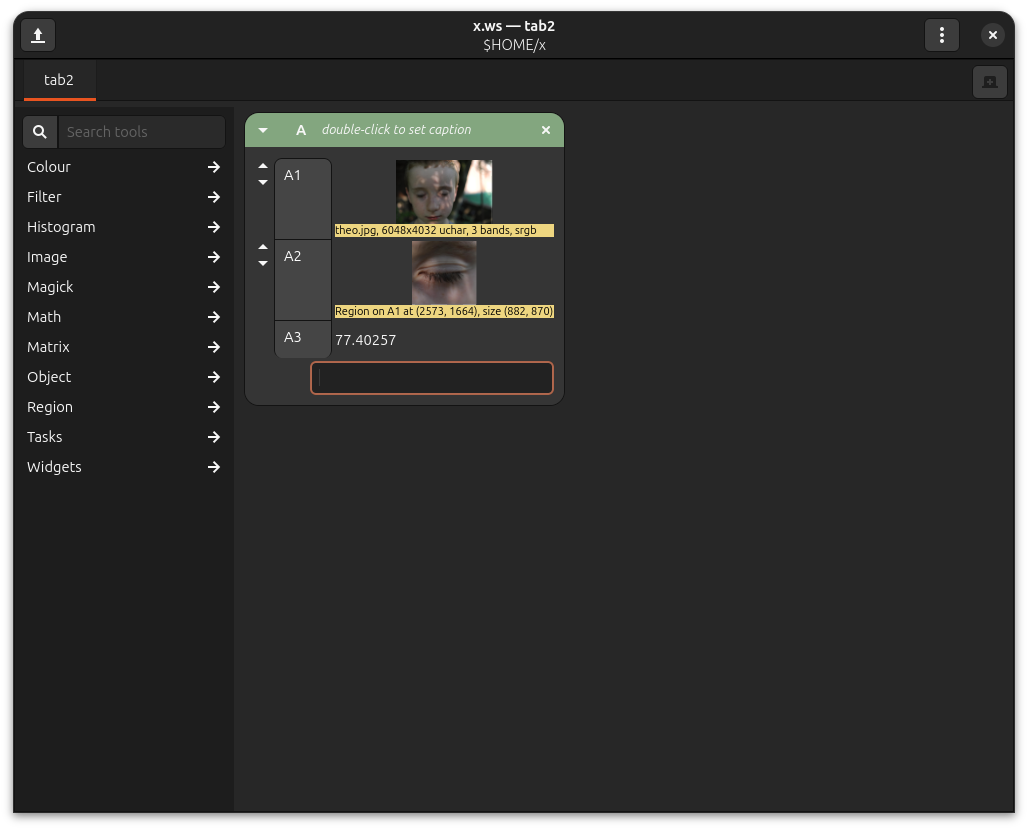
That’s loading an image (A1), cropping a region (A2), and calculating the average pixel value for the region (A3).
You can make a .def file like this:
main = Workspaces.tab2.A3;
Then run this:
$ snip -w x.ws main.def
77.40257
$
To print the value of a row.
Setting values in workspaces
You can use -= (--set) to assign new values to rows, or to declare new
symbols.
For example, this will create a symbol called main which nip4 will then
print:
$ snip -w x.ws --set 'main = Workspaces.tab2.A3'
77.40257
$
Or this will modify the formula for row A1, letting you run the same workspace on a different image:
$ snip -w x.ws \
    --set 'main = Workspaces.tab2.A3' \
    --set 'Workspaces.tab2.A1 = Image_file "/home/john/pics/nina.jpg"'
180.6809
$
Saving rows from workspaces
You can use -o to save a cell to a file:
$ snip -w x.ws --set 'main = Workspaces.tab2.A2' -o fred.jpg
$
Just as before, you can save a list of images too:
$ snip -w x.ws \
    --set 'main = [Workspaces.tab2.A2, Workspaces.tab2.A2]' \
    -o fred-001-crop.jpg
$ ls fred*
fred-001-crop.jpg  fred-002-crop.jpg
$